
There are a number of report options for drug and alcohol test results, DOT MIS Reports, Random Selection Statistics, and more.
- Report test results for one specific account
- Report tests across all company accounts
- Report test results for a consortium
- Report test results from the client login portal
Reports for one Specific Account
Search for the account and tap the report icon (outlined in red below). This example tap the icon to generate reports for Altanta Beverage Company, for their Delivery Drivers account.

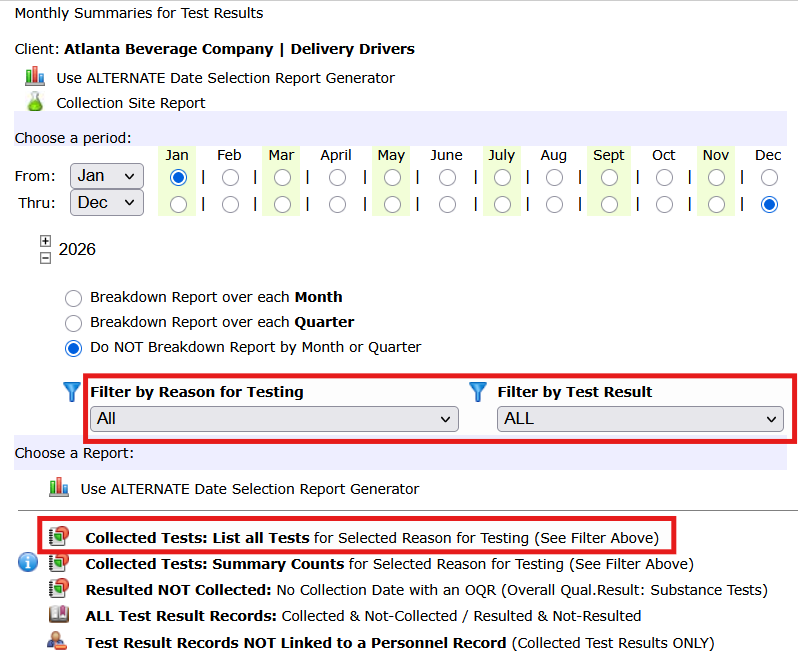
This will open the report module shown below. Set the months and year you want covered in the report. For drug/alcohol test results you can filter by Reason for Testing and the Overall Qualitative Test Result (OQR).
To review a list of all the tests that have been collected for the period of the report, tap the option highlighted in red: Collected Tests …
You will find a variety of reports on the page: Test Results, MIS Reports, Random Selection Statistics, and more.
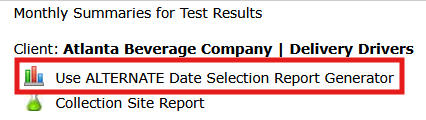
If you would like a report with more filter options, choose the Alternate Date Report option outlined in red below – note: you will find this option is at the top of the page in the screenshot above.
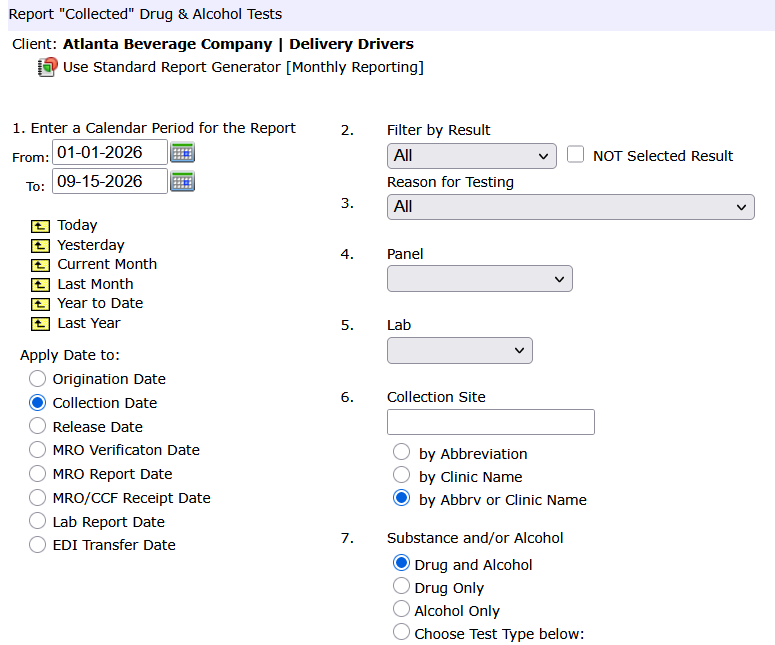
The Alternate Date Report generator provides a number of filters and allows for reporting across any calendar period. Enter the calendar period, From-To, set the Apply Date to option, and depending on your needs, choose one or more filter options, then click the option Display to Screen (near bottom of the page on the right) to generate the report for viewing.
Reports across all company accounts
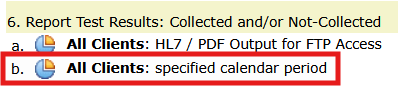
To generate reports across all companies in a single report, tap the menu Results:

On the Results page, choose the option All Clients: specified calendar period. This will open a page exactly similar to the Alternate Report Generator shown above.
Reports for a Consortium
To generate reports for a consortium, from the main page, choose the consortium in the dropdown and tap the report icon – it will open a page exactly similar to the report page discussed above for a company account.

Reports from the client login portal
To generate reports from the client portal, tap the Tests icon at the top of the page.
You can login as a company contact to review exactly what the client sees. Please refer to the article Client Portal Access - scroll to the bottom of the article where it discusses how to login as one of your customers.
