Owner Operators: Create Account / Join Consortium

To manage an Owner/Operator, add them to the system like any other company.  On the main page, tap the New Client icon (outlined in red below) to create an account for the owner/operator.

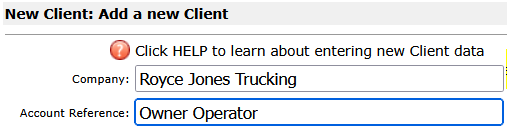
On the New Client page, for Company, enter the owner operator’s company name or enter a company name that reflects the owner/operator as exampled below.  For Account Reference, enter Owner Operator as a straight forward identifier for the of account.

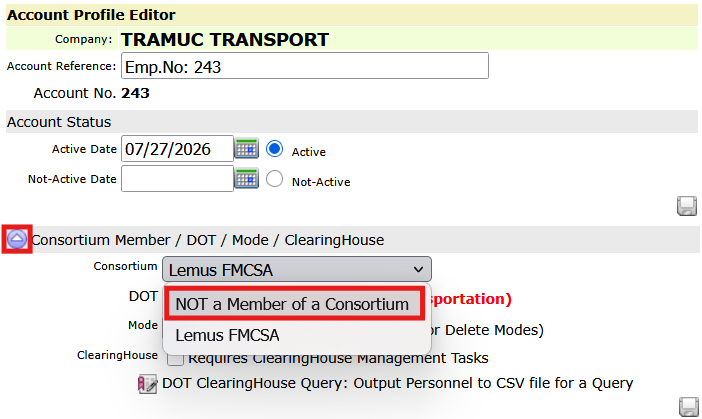
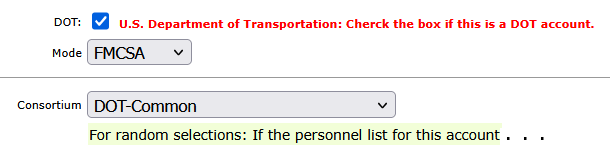
Since the account is for an owner operator, made the account a member of an FMCSA consortium.  Joining a consortium and participating in the consortium random selections provides compliance with DOT regulations.  Further down the New Client page choose the consortium for the account.  In this example the account will be a member of the consortium DOT-Common - the user will choose from their consortium list in their database.

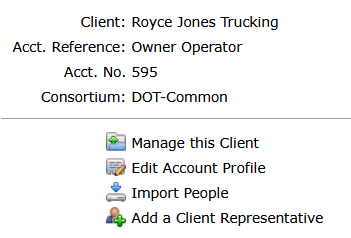
Click Save to create the new Client and its account.  The next page will confirm the new client/account was successfully created:

Now the owner operator can be entered as a participant in the account roster.

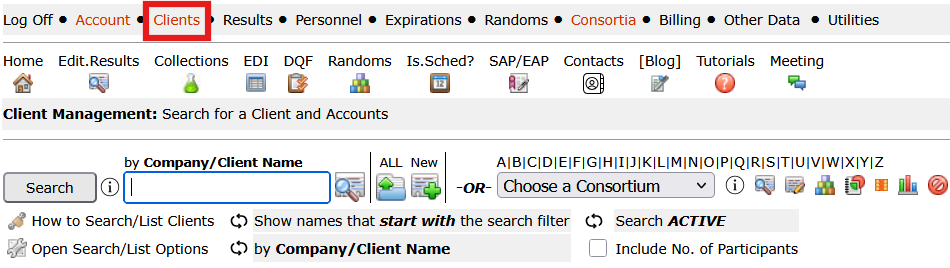
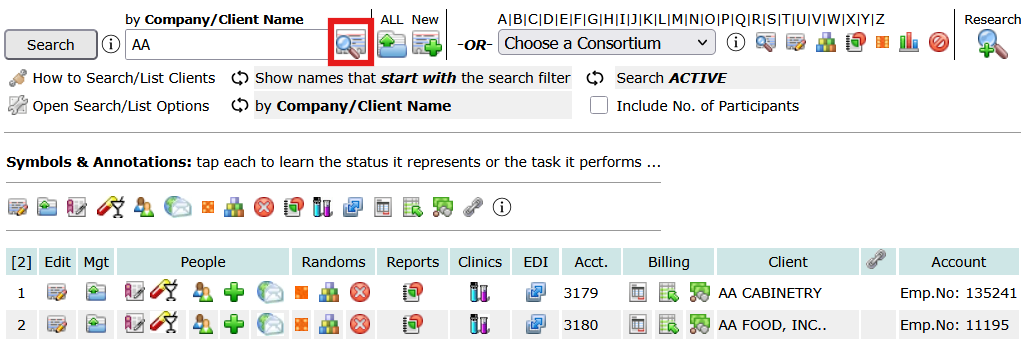
  • Tap the Clients menu at the top of the page, and search for the new Client.
  • From the client list tap the people icon outlined in red as shown below.
  • The people icon includes a shield to indicate the account is DOT.
  • On the right, just before the account name, an icon is displayed to indicate the account is a consortium member.  Tap the icon to see the name of the consortium to which it belongs.


Streamline DOT Compliance and Drug Testing Management

Managing owner/operator accounts and placing them into a consortium is a critical step in maintaining DOT compliance and ensuring accurate participation in random drug and alcohol testing programs.
As outlined in this tutorial, properly setting up an account and associating it with the correct consortium helps streamline participant tracking and reporting requirements.

DrugTestNetwork.com provides a complete drug testing data management system designed for employers, consortium administrators, and third-party administrators (TPAs). From creating client accounts to managing employee rosters and owner/operators, the platform simplifies complex workflows required for random selections, audit-ready recordkeeping, FMCSA compliance, and all other DOT Modes.

Whether you are on-boarding new owner/operators, maintaining a drug-free workplace, or managing SAP/EAP program participants, DrugTestNetwork offers the tools needed to stay organized and compliant with a complete data management solution.

Features such as consortium management, participant tracking, automated random selections, and compliance reporting help reduce administrative burden and improve accuracy.

If your organization manages DOT-regulated employees or owner/operators, implementing a centralized system like DrugTestNetwork can significantly improve efficiency, reduce compliance risk, and ensure your drug testing program meets federal requirements.

Two Companies or the Same: Active vs. Not-Active

When search/listing clients to include Non-Active Accounts set the option:
Search ALL [Active & Not-Active].

By default the Client search only lists Active accounts.  If the search turns up no results or it appears that an accounts is missing, it’s possible the account is Not-Active.  To enable the search to return Active and Not-Active clients, set the search attribute as shown in the example below.

You can cycle through the options (Active, Not-Active, All) by tapping on the circular arrows icon  that precedes each of the search options.
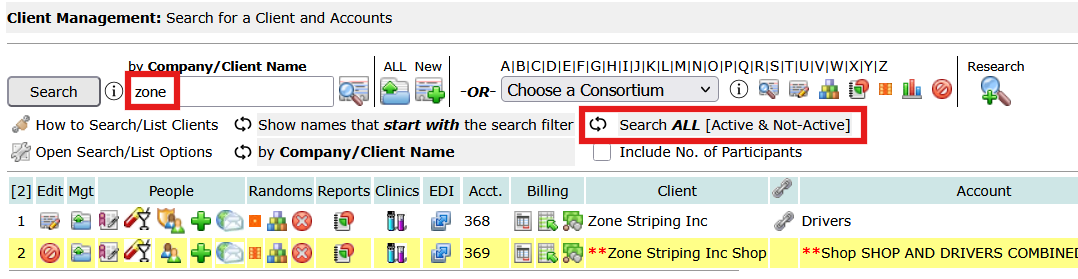

This example searches for a client whose name starts with Zone, and finds two with similar names.  The first one is account no. 368, and the second one is account no. 369.  Account numbers are assigned sequentially, so account no. 369 was probably entered accidentally, and when the user noticed it was a duplicate, it was made Not-Active.

**Note: when double asterisks (**) precede the client name it means the client is not-active and when double asterisks (**) precede the account name it means the account is not-active.  A Client can have multiple accounts and some of its accounts can be Not-Active while the Client is Active.

Any client representative, company contacts, that belong to the not-active account would not be able to login to the portal.


Strengthen Your Drug Testing Program with Better Data Visibility

Managing Active vs. Not-Active clients and accounts is more than just a search setting—it’s a critical part of maintaining clean, accurate records in your drug testing program. As organizations grow, duplicate entries, inactive accounts, and outdated client records can easily lead to confusion, reporting errors, or missed compliance requirements.

With DrugTestNetwork.com, administrators gain full control over client status, account activity, and participant data across the entire system. Whether you’re managing DOT compliance, maintaining a drug-free workplace, or overseeing SAP/EAP program participants, having clear visibility into both active and inactive records ensures nothing falls through the cracks.

Features like flexible search filters, structured client/account relationships, and centralized data management allow organizations to:

  • Quickly identify duplicate or outdated client records
  • Maintain accurate account histories for audits and reporting
  • Ensure proper inclusion or exclusion of records in compliance reports like DOT MIS
  • Improve overall employee and participant management workflows

If your organization relies on accurate data to support drug testing, employee tracking, or regulatory compliance, implementing a system that intelligently manages active and inactive records isn’t optional—it’s essential.

DrugTestNetwork.com provides a complete solution for managing these complexities, helping organizations stay organized, compliant, and efficient at every stage of the drug testing process.

Email Random Selections to Company Contacts

When a random selection is completed, the page that shows the results of the selection provides options for a number of administrative reports, printed reports for the client and options to email the company contact.

The user can reopen that page for any previously generated random.  On the main page click the Randoms shortcut icon:

When the page opens enter the calendar period when the random was generated and click the List Randoms button to list the randoms for the period specified as shown below.  To open the random selection and review the participants selected and all the print options, click the first icon outlined in red below.  From that page you can also choose the option to send an email to the company.  To open the email page directly from the list below, click the second icon outlined in red.

Send the emailing: When you click the email option (second icon outlined in red above) the email control page will open with a list of contacts for the company.  To send an email to the listed contact be sure their check-box is checked as shown below and click the email button (outlined in red below).

A new page opens with the message you can change to suit your communication style. There is no need to address the contact specifically – the email module will add their name to the salutation.  The email page will allow you to enter your preferred greeting, e.g., Dear, and the email, in this example, when the email is sent, it would automatically say: Dear Deborah Webb.

After you review the message, and other options on the email page, click the proof button at the bottom on the left.  The proof page will provide a preview of the email.  At the bottom of the proof page, on the left, click the button: Send eMail(s), and you’re done.  The user will also get a copy of the email send.


Efficient Random Selection Communication for Consortiums and Employers

Sending random selection notifications is a critical step in maintaining a compliant drug and alcohol testing program. Whether you’re managing a single employer account or overseeing a consortium of multiple participating accounts, ensuring that the right contacts receive timely selection lists is essential for keeping testing programs on track.

DrugTestNetwork.com is designed to support both consortium administrators and individual employer programs with flexible communication tools. For consortiums, this means the ability to manage multiple client accounts, maintain designated contacts for each company, and efficiently distribute random selection lists across your entire network. For single employers, it provides a streamlined way to notify supervisors or DERs without manual coordination.

By automating the delivery of random selections via email, DTN reduces administrative workload while supporting DOT compliance requirements. Integrated contact management ensures that selection lists are always sent to the correct recipients, helping to prevent delays in testing and improving overall program reliability.

Beyond notifications, DTN offers a complete drug testing data management solution, including random selection generation, employee tracking, and SAP/EAP program management. These tools work together to support a consistent and defensible drug-free workplace program, whether you’re coordinating testing for one company or hundreds.

Explore more capabilities:

  • Manage multiple companies within a consortium structure
  • Maintain accurate contact lists for selection notifications
  • Track employee status and testing history
  • Support DOT MIS reporting and audit readiness

List Participants Selected in Previous Random

To list a company’s participants selected in earlier random selections:

  • Search for the company
  • Click the List Randoms icon for the account:

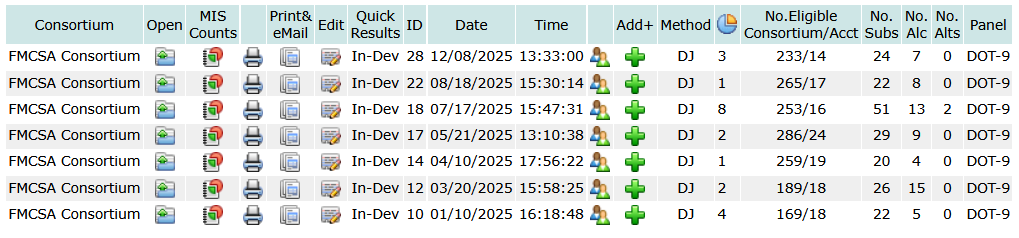
When the list random page opens, enter the dates that cover the period the random selections were generated.  The example below shows random selections for 2025 for the account LB Cargo, and each random was conducted for the consortium named FMCSA Consortium:

To open the list of participants selected for the random generated on 12/08/2025, click the Open icon .

When the page opens it will all the participants selected from the account. In this case, it will only include the paricipants selected for the account and not the full list of participants from all members of the consortium. To print the page type [Ctrl]-P.  To get a list of all participants selected across all the consortium members, list the randoms for the consortium: on the main page choose the consortium in the drop down list of consortia and click the list randoms icon for the selected consortium.

You will find other report options on the page. With every report option to print a hard copy type [Ctrl]-P.

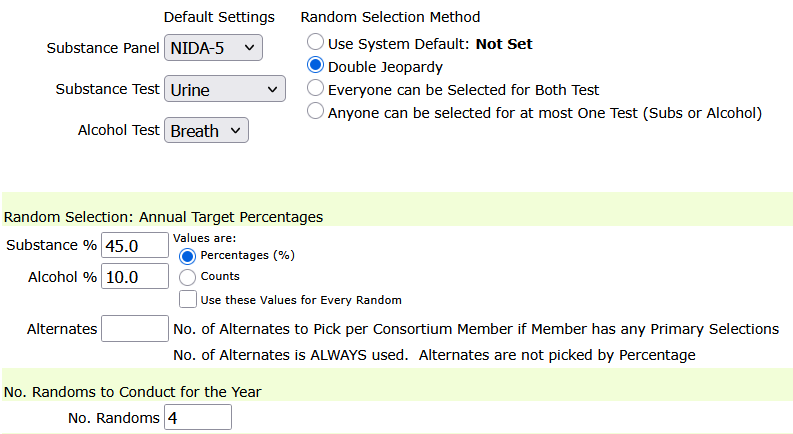
DrugTestNetwork/RandomWare features comprehensive random selection utilities to pick participants for drug and alcohol testing to comply with drug free workplace policies or to stay in compliance with US DOT (Department of Transportation) regulations.  The application features resources to generate random selections from stand alone pools or a consortium of multiple companies. Specify annual percentage targets, for stand alone pools or consortia, and the the random selection control will automatically keep the selections on track so you will hit the annual target of participants required for both the drug and the alcohol tests.


DOT MIS Analytics Report

Run the DOT MIS Analytics Report Before the DOT MIS Report

The DOT MIS Report only counts test results that match specific MIS reporting rules.
Some test results may get counted because the Reason for Testing,
Overall Qualitative Result, DOT status, Mode/Category, random
selection link, or canceled-test settings do not conform to MIS requirements.

The DOT MIS Analytics / Validation Report helps you find those
records before running the final DOT MIS Report.

To run the report for an individual account, search for the company and tap the report icon   for the account.and from the list as shown here:


To run the report for a consortium, on the main page, choose the consortium in the drop-down and tap the report icon  on the right:

When the page opens set the year the report covers.

Lower on the page, tap the report option:
DOT MIS Report Analytics: Show ONLY Tests that DO NOT conform …

  • Open the DOT MIS Analytics / Show ONLY Test that DO NOT conform …
    Run the Analytics Report for the year and month range specified.
  • Review tests marked an invalid and resolve the issues
    The report lists collected tests in the selected period and identifies
    records that may not be counted correctly on the MIS Report.
  • Check the “Reason Invalid” message
    Each invalid record explains why it does not conform. Common issues include:

    • Missing or invalid Reason for Testing
    • Missing or invalid Substance result
    • Missing or invalid Alcohol result
    • Missing Mode or Category
    • Mode/Category inconsistent with the selected account or consortium
    • Random test linked to the wrong selection or consortium
    • Canceled test missing either the CANCEL result code or the canceled checkbox
  • Edit the test result as needed
    Use the edit icon next to the record to correct the Reason for Testing,
    Overall Qualitative Result, canceled-test setting, DOT status, Mode, or Category.
  • Re-run the Analytics Report
    After corrections are made, run the Analytics Report again to confirm that
    the records now conform to the DOT MIS Report requirements.
  • Run the DOT MIS Report
    Once the Analytics Report no longer shows invalid records, run
    the DOT MIS Report with greater confidence that the report counts are accurate.

Key reminder

The Analytics Report does not replace the DOT MIS Report. It is a review tool
that helps identify records that may be excluded or counted incorrectly before
the official MIS report is generated.

DrugTestNetwork features automatic generation of the DOT MIS Report for Consortia, member participation, and stand alone accounts.  Users will also find complete analytic reports to confirm all reported test results conform to the requirements of the DOT MIS Report and includes data management tools to resolve any issue.

Users will also find resources to send every DOT account its MIS Report in a single request using the MIS Kiosk feature.

Add / Remove Participants

To manage participants (company employees, drivers, persons eligible for random selection, etc.) search for the company and tap the people icon to manage the account’s participants:

DOT account: tap the people icon with a shield.
Non-DOT account:  you will see a people icon without a shield.

A pop-up page will open where you can search for a person by name or list all participants by status: Active, Not Active, Pending:

  Click the Active icon to list all active participants.
  Click the Not icon to list all Not-Active Participants.
  Click the ALL icon to list Active, Not-Active, and Pending Participants.
  Click the clock to list Pending Participants.
  Click the Plus icon to add a new participant.
  You can also search for participants by name.

When you list or search for participants you’ll have a number of options to choose from: tap on an icon. If you hover the mouse over an icon a “tool-tip” displays that offers a brief description of the option.

 Open Participant’s Dashboard
 Open the Profile Editor to manage profile details, change status: Active, Not-Active, Pending

Participants with the status Not-Active or Pending are not included in the list for random selection.  A participant might be added as “Pending” if that person has not yet been hired; their status can be changed to “Active” once hired and engaged in safety sensitive duties.  A person with Not-Active status is someone who may have been terminated and no longer works for the company. For random selection purposes, only Active participants are included in random selections and contribute to the average number of participants, calculated across all random selections conducted, for a calendar year,  for the account or the consortium if the account is a member.

Newsletter: Send Update Participant Roster Announcements

Use the Newsletter to Send each account their Current Participant List Prior to Random Selections

Before running a random selection, it’s important that client accounts have an up-to-date participant list. The Newsletter feature in DrugTestNetwork (DTN) allows you to easily send a message to multiple accounts at once with options to include their current personnel roster so it can be reviewed and updated.

Best Practice: Send this reminder a few days before generating a random selection to give clients time to make updates.

Access the Newsletter Feature

  1. Go to the Utilities menu
  2. Select Newsletter Utilities

Step 1: Enter the Email Subject and Message

  • Enter a clear Subject Line (required)
  • Compose your message
Suggested Subject: Review & Update Your Participant List
Suggested Message: Review your current participant list included here and make any necessary updates prior to the upcoming random selection. Ensuring your roster is accurate helps maintain compliance and prevents missed selections.

Step 2: Choose Who Will Receive the Email

After the sections Message and Closing Statement, you’ll see the section: Indicate the Extent of the Broadcast.  To send the email to a consortium, select Only Selected Consortium, and choose the consortium in the drop-down.

Tip: Use the selected consortium option when preparing a random selection for that specific group.

Step 3: Include the Participant List

The newsletter allows you to include each account’s current personnel roster directly in the email.

Select one of the following options:

  • Active — Only currently active participants
  • Active & Pending — Includes participants not yet fully active
  • ALL — Includes Active, Pending, and Not-Active participants
Important: The participant list cannot be sent when the extent of the email is Everyone - some client contacts (reps) may not be assigned to an account and a list cannot be determined in these cases.

Step 4: Preview or Count Recipients

Before sending, you have options to verify your email:

  • Preview (Show) — Opens a preview of the email
  • Count — Displays how many recipients will receive the message
Recommended: Always preview your message to confirm the message before sending.

Step 5: Send the Newsletter

Once everything looks correct:

  • Confirm recipients and participant inclusion settings
  • Review your message content
  • Proceed with sending the email

Workflow Tip: Preparing for Random Selection

Recommended Workflow:

  1. Send the newsletter requesting participant updates
  2. Allow time for client accounts to review and update their rosters
  3. Verify key accounts if needed
  4. Run the random selection with confidence that your data is current

Final Tip

Using the newsletter feature for participant updates is one of the most efficient ways to communicate with multiple accounts at once. A quick reminder before each random selection helps improve accuracy, compliance, and overall program quality.

SAP/EAP Follow-Up Randon Periodic Drug Testing

Random Periodic Drug Testing Strategies: Individual, Color-Coded, and Horizon-Based Scheduling

In modern drug and alcohol testing programs—particularly those supporting rehabilitation, drug court, family court, DOT compliance, and employee assistance programs—effective scheduling is critical. Testing must be random, defensible, scalable, and operationally practical.

Often, scheduling approaches often fall short when programs expand or when participant requirements vary. DrugTestNetwork (DTN) introduces a comprehensive framework that automatically generates periodic testing dates to adapt to multiple program models, ensuring both compliance and efficiency.

This article outlines the core scheduling methodologies available within DTN, including:

  • Individually scheduled periodic testing
  • Color-coded group testing
  • Fixed-date program scheduling
  • Open-ended horizon-based scheduling
  • Constraint-based randomization and failure handling

1. Individually Scheduled Periodic Testing

Individually scheduled testing generates a unique set of randomized test dates for each participant based on defined parameters:

  • Frequency (nDays) — number of required tests
  • Timeframe — number of days in the testing window

For example, a 2/14 configuration requires two test dates within every 14-day window. Each participant’s schedule is generated independently, ensuring:

  • Maximum randomness
  • Even distribution of testing volume
  • Reduced risk of predictable patterns

This model is particularly effective when participants report to a single clinic or limited number of collection sites, as it prevents operational bottlenecks caused by concentrated testing volume.


2. Color-Coded Testing (Group Scheduling)

Color-coded testing introduces a group-based scheduling model where a predefined set of randomized dates is generated for a Color Code (e.g., Red, Blue, Green).

Participants assigned to a color inherit that color’s schedule, meaning:

  • All participants with the same color test on the same dates
  • Administrative overhead is significantly reduced
  • Scheduling becomes standardized across groups

This model is highly effective in distributed environments where participants report to multiple clinics across a region, city, or state. However, it requires careful planning when participants share a single collection site, as simultaneous testing requirements may exceed capacity.


3. Fixed-Date Program Scheduling (Start/End Defined)

Many rehabilitation and court-ordered programs operate within a defined enrollment period. DTN supports fixed-date scheduling based on:

  • Program Start Date
  • Program End Date

Within this window, the system generates all required test dates according to the participant’s frequency and timeframe configuration.

This approach ensures:

  • Full coverage of the program duration
  • Compliance with court or clinical requirements
  • Clear visibility into all upcoming obligations

Fixed-date scheduling is commonly used in:

  • Drug court programs
  • Family court monitoring
  • Structured rehabilitation timelines

4. Open-Ended Scheduling with Extended Horizons

Not all participants have a defined program end date. For these cases, DTN introduces horizon-based scheduling, where test dates are generated forward into the future without requiring a fixed end date.

A configurable horizon (e.g., 90 days, 6 months) ensures that participants always have upcoming scheduled tests while avoiding unnecessary long-term projections.

With Nightly Extension enabled:

  • The system automatically extends future dates as time progresses
  • Participants never “run out” of scheduled tests
  • Administrative intervention is minimized

Additional logic prevents excessive generation by skipping participants whose schedules already extend sufficiently into the future.


5. Dynamic Rescheduling and Parameter Changes

When a participant’s testing requirements change—such as frequency or timeframe—DTN treats the update as a new scheduling profile.

The system:

  • Deletes all future scheduled dates (typically from tomorrow forward)
  • Regenerates dates using the updated parameters

This ensures:

  • Consistency with current program requirements
  • No overlap or conflict with prior scheduling logic
  • Clean transition between testing protocols

6. Constraint-Based Randomization

DTN’s scheduling engine incorporates real-world constraints to ensure both compliance and practicality:

  • Exclusion of specific days (e.g., weekends or holidays)
  • Exception calendars (e.g., clinic closures, holidays)
  • Non-consecutive day rules
  • Daily capacity balancing across participants

These constraints are applied during date generation to produce schedules that are both random and operationally viable.


7. Failure Handling and Audit Transparency

In certain scenarios, it may not be mathematically possible to generate all required test dates within a timeframe due to constraints.

Rather than failing silently, DTN:

  • Logs the issue with detailed reason codes
  • Continues generating remaining viable dates
  • Provides reporting for administrative review

This ensures transparency and allows program managers to take corrective action when necessary.


8. Operational Efficiency and Industry Impact

The combination of individual scheduling, color-coded grouping, and horizon-based automation positions DTN as a comprehensive solution for modern testing programs.

Key benefits include:

  • Scalable scheduling across thousands of participants
  • Reduced administrative overhead
  • Improved clinic load management
  • Enhanced compliance with regulatory and judicial requirements
  • Defensible randomization methodologies

Whether managing a small rehabilitation program or a large multi-site testing network, DTN provides the flexibility and control required to maintain both efficiency and integrity.


Conclusion

Periodic drug and alcohol testing is no longer a one-size-fits-all process. Programs vary in size, structure, geography, and compliance requirements.

By supporting multiple scheduling strategies—including individual randomization, group-based color coding, fixed program timelines, and automated horizon extension—DTN enables organizations to design testing protocols that align with their operational realities.

This flexibility, combined with robust constraint handling and audit transparency, establishes DTN as a leading platform in the drug testing and rehabilitation monitoring industry.

Participant List: eMail to Contact / DER

Sending a Participant List to a DER (Designated Employee Representative)

Keeping your clients informed is an important part of managing your program in DTN. You can quickly send a participant list to each company’s Designated Employee Representative (DER) — either in the email body or as a CSV attachment.


Step-by-Step: Send a Participant List

  1. Search for the Company
  2. Click the Email Personnel icon 
  3. Select the Recipient(s)
    Contacts for the company will appear with checkboxes.Ensure the DER is selected.Select additional contacts if needed.

Choose Which Participants to Include

Select the scope of participants to include in the list:

  • Active — Only currently active participants
  • Active & Pending — Includes participants not yet fully active
  • ALL — Includes Active, Pending, and Not-Active participants
Tip: Choose the option that best fits what your client needs to review. Most DERs prefer Active or Active & Pending.

Choose How to Send the List

  • Include in Email Body
    The participant list appears directly in the email message.Best for quick viewing.
  • Attach as CSV File
    Adds a downloadable spreadsheet file.Ideal for sorting and filtering.

Optional: Add Additional Recipients

You are not limited to saved contacts.

  • Enter a name and email address manually to include someone not listed
  • Add yourself to preview the email before sending
Preview Tip: Sending the email to yourself first is a great way to confirm formatting and content before delivering it to your client.

Use an Email Template (Recommended)

Save time by creating a reusable email template instead of writing messages from scratch each time.

To create or edit a template:

  1. Go to the Other-Data menu
  2. Select Mail/Text Messages & Other Documents
  3. Choose Current Personnel Roster
Efficiency Tip: Create a standard message for participant lists and simply make small edits before sending. This can save significant time when working with multiple clients.

Final Step: Review and Send

Before sending, confirm the following:

  • Correct recipients are selected
  • Participant scope is correct (Active, Active & Pending, or ALL)
  • Message content is accurate
  • List format is correct (email body or CSV attachment)
Final Tip: A quick review helps ensure your message is clear, accurate, and professional before sending.

About DOT Clearinghouse Queries

About DOT Clearinghouse Queries

The DOT Drug & Alcohol Clearinghouse requires employers (or their designated service agents) to run specific types of queries on CDL drivers for compliance. Each query type serves a different purpose depending on when the driver is being checked and what level of information is required.

DrugTestNetwork will output the data, formatted properly, into a file you can upload directly to the DOT through your Clearinghouse Account for a “batch” query.  You can create a file for multiple companies or an individual company and submit them all separately as needed.  Read about the Required File Format.

In batch (.txt) uploads, query types are commonly represented as numeric values:
1, 2, 3, and 4.


Query Type 1: Limited Query

Purpose: Confirms whether a driver has any drug or alcohol violations recorded in the Clearinghouse.

  • What it returns: Yes/No only (no violation details)
  • Consent required: General (standing) consent on file
  • When to use: Annual checks for currently employed CDL drivers (when consent is already on file)

Important: If a Limited Query indicates a violation exists, you must perform a
Full Query (Type 2) to view details.


Query Type 2: Full Query

Purpose: Retrieves detailed Clearinghouse information, including violation and Return-to-Duty status.

  • What it returns: Violation details, dates, RTD/SAP status (where applicable)
  • Consent required: Driver electronic consent for each Full Query
  • When to use: When details are required (e.g., after a violation is found or to confirm RTD status)

Full Queries are used whenever an employer needs the details behind a “violation found” result or needs to verify a driver’s eligibility status following a violation.


Query Type 3: Pre-Employment Full Query

Purpose: A mandatory Full Query performed before allowing a driver to perform safety-sensitive duties.

  • What it returns: Same detailed results as a Full Query
  • Consent required: Driver electronic consent
  • When to use: Pre-employment screening before hiring / onboarding a CDL driver for safety-sensitive work

Key point: A Limited Query (Type 1 or Type 4) cannot be used for pre-employment purposes.
Pre-employment screening requires a Full Query.


Query Type 4: Limited Query with Automatic Consent Request

Purpose: Runs a Limited Query (Yes/No only) and, if general consent is missing, automatically requests it from the driver.

  • What it returns: Yes/No only (no violation details)
  • Consent behavior:
    • If general consent already exists, the Limited Query proceeds normally.
    • If general consent is missing, the Clearinghouse automatically sends a consent request to the driver.
  • When to use: Annual Limited Queries when consent may be missing for some drivers (especially in large batch uploads)

Important: Type 4 still returns only a Limited result. If a violation is found, you must follow up with a Full Query (Type 2) to view details.


Quick “When to Use” Summary

  • Type 1: Annual Limited Query when general consent is already on file.
  • Type 2: Full Query when detailed results are required (including RTD/SAP status).
  • Type 3: Required Full Query for pre-employment screening before safety-sensitive work.
  • Type 4: Annual Limited Query when general consent may be missing; automatically requests consent if needed.

Rule of thumb:
Limited Queries (Types 1 & 4) answer: “Does a violation exist?”
Full Queries (Types 2 & 3) answer: “What are the details?”


Quick Comparison Table

Query Type Name Returns Details? Consent Typical Use
1 Limited Query No (Yes/No only) General consent Annual checks
2 Full Query Yes Electronic consent Details / RTD status
3 Pre-Employment Full Query Yes Electronic consent Pre-hire screening
4 Limited Query with Automatic Consent Request No (Yes/No only) Auto-requests general consent if missing Annual checks at scale

When One or Both Parts of a Random Test are NOT Collected

A Random Test, sometimes requires both a Drug and a separate Alcohol test. However, there are cases when only one component of the test (e.g., drug or alcohol) was actually conducted. This can happen for a number of reasons. For some compliance considerations, you may want to record why the test was not conducted, and indicate a reason in the report record, for each test component not conducted. If the Date of Collection is set, the test is considered collected and will count toward the annual random selection percentages.  Keep in mind, if a random drug test record is not completed, it will not create any issue with your data or statistical reports.  The record simply exists as an incomplete random test. If you issue non-completed random test reports to the client, these tests will continue to be included.  Random test result records with a collection date or an Overall Qualitative Result are considered resolved. If you resolve the record, the tests will not be included in the non-completed reports.  However, if you don’t want the tests to contribute to the annual percentages, you can leave the collection date blank or, if you enter a collection date, you can use a special Overall Qualitative Result (OQR) that has its attribute set that prevents the test from getting counted as a collected test.  When you use a special OQR, the collection date can then serve as the date the record was resolved.

For example, you might consider these OQRs:

  • Not Conducted
  • No Longer Employed
  • Test Overlooked
If an OQR has the attribute set, Does NOT Contribute to Random Selection Statistics, it prevents the test from getting counted.  See below for instructions to add these OQRs if they are not already in your database.

For tests that were not conducted, follow the guidance below:

Open the test result in the Full Record Editor where you can manage the OQR for the drug and alcohol tests.

You have three options:
Option 1: Omit the Specimen Type

In the Full Record Editor, where you see “Specimen Type” for the drug or “Alcohol Test” for the type of alcohol test to conduct, select the option: Not Tested (or blank if Not Tested isn’t found). Using the option implies the test was not required.
This indicates that no test was required or performed for that portion.
The test result will not be included in the random selection statistics.

Option 2: Use a Special OQR (Overall Qualitative Result) that prevents the test (drug or alcohol) from getting counted. If a collection occurred but one part of the test was overlooked, you can set the OQR for that component using one of the special OQRs.

Option 3: Use OQR Participant Is No Longer Employed

In some cases, the participant may no longer be employed by the company at the time of the scheduled test. The user may still wish to complete the record for data management purposes.

This allows the record to be marked complete while excluding the test from statistics.

To add new OQR with the special attribute:

  1. Navigate to: Other-Data and tap the option: 
    Test Result Codes: Overall Qualitative Results [OQR]
  2. Tap the option to add a new OQR, such as:Test Collection Overlooked
  3. Set check-box for the attribute: Does NOT Contribute to Random selection statistics (see image below).
  4. In the Full Record Editor, apply this OQR to the drug or alcohol component that was not collected.

This ensures that:

  • The urine (drug) test does not count toward annual random selection stats.
  • The Collection Date still applies — for example, to record the alcohol test.

Summary Logic

  • If a Collection Date is entered:
    • The test is normally counted for statistics.
    • Unless the Specimen Type is blank or the selected OQR is set to one marked  Does NOT Contribute to Random selection statistics.

Tip

Use these procedures for cases such as participant not available, overlooked test, or no longer employed. These methods help you maintain a complete record while ensuring your random test statistics remain accurate.

Personnel Menu: Cleaner Presentation

In DrugTestNetwork, the Personnel menu lets you search for people (donors, participants, employees, etc.) across all accounts.  When you find the person you can edit their profile, open their dashboard, create a new drug / alcohol test result record, get a list of all their drug and alcohol test result reports, and more.

The feature now has a new streamlined presentation for less clutter on the page with the same full control of the search.

Click the about icon  to get an overview how search works.

Click the services icon   to read how to easily manage the search options.

Click the wrench icon  to open the Search Options Panel where you’ll find all the options fully presented similarly as in the earlier version of the feature.

Use compact icons  to cycle through search options without clutter.

How to Use the Search Tools

1. Cycle Through Options Using Icons

  • Each of the four search option categories shows an icon control  that cycles through the options in that section when clicked.
  • The label beside the icon updates to show your current selection.

2. Open the Full Search Panel

  • Click on the wrench icon or the label Open Options Panel.
  • Review and change all filters, including Name and ID fields.
  • Choose:
    • Search – run the search immediately
    • OK – apply changes and close the pane