Random Selection Profile: Consortia & Stand Alone Accounts

Every consortium and account that is a stand alone pool has a random selection profile with the parameters and attributes that set the controls for the random selection module, and include the annual target percentages, the default test types and the default panel that species the substances to be tested.

To manage the profile for a consortium: on the main page, choose the consortium in the drop-down selection and tap the edit icon (outlined in red below) to open the consortium profile.  In the example below, the consortium named FMCSA has been selected.

The consortium profile can also be opened from the Consortia page.  Tap the Consortia menu at the top of the page:

When the profile editor opens, specify the random selection parameters as needed.

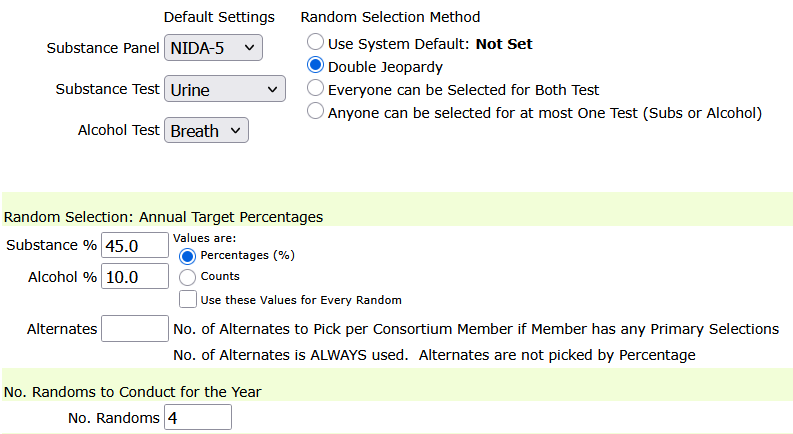
In the example below, the substance panel is set to NIDA-5 (standard DOT 5 Panel), the sample to be collected for the substance test is set to Urine, and the alcohol test is set to Breath.

The annual percentage for substance is set to 45%, and alcohol is set to 10%.

In this example the number of randoms to conduct for the year is set to 4 for quarterly randoms.  If starting halfway through the year, with anticipation to only generate 2 random, change the 4 to 2.  The percentages will be adjusted for each random selection accordingly.

Adjust the percentages to suit your objectives and click the Save (or Submit) button at the bottom of the page.

Random Selection Profile Example:
Accounts that are Stand Alone Pool: To manage the profile for a stand alone pool, open the account profile editor where the random selection profile for the account is managed.

To access the Account Profile for a stand alone account, search for the account, and tap the account profile editor symbol.  The example below opens the profile editor for J&K Cargo – click the edit symbol (outlined in red below).

In the profile editor, scroll down the page to find the random selection profile. Tap on the triangle symbol to open and close the section.  Not all the parameters and attributes are shown here – there are similar parameter for the account as shown in the example above for a consortium.

Owner Operators: Create Account / Join Consortium

To manage an Owner/Operator, add them to the system like any other company.  On the main page, tap the New Client icon (outlined in red below) to create an account for the owner/operator.

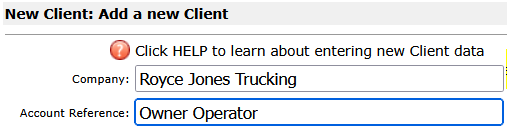
On the New Client page, for Company, enter the owner operator’s company name or enter a company name that reflects the owner/operator as exampled below.  For Account Reference, enter Owner Operator as a straight forward identifier for the of account.

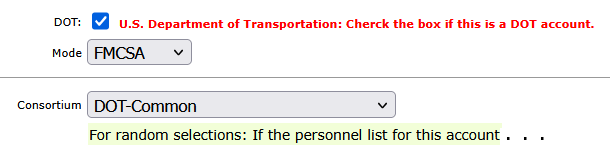
Since the account is for an owner operator, made the account a member of an FMCSA consortium.  Joining a consortium and participating in the consortium random selections provides compliance with DOT regulations.  Further down the New Client page choose the consortium for the account.  In this example the account will be a member of the consortium DOT-Common - the user will choose from their consortium list in their database.

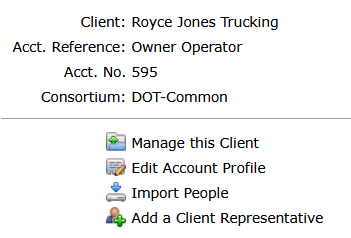
Click Save to create the new Client and its account.  The next page will confirm the new client/account was successfully created:

Now the owner operator can be entered as a participant in the account roster.

  • Tap the Clients menu at the top of the page, and search for the new Client.
  • From the client list tap the people icon outlined in red as shown below.
  • The people icon includes a shield to indicate the account is DOT.
  • On the right, just before the account name, an icon is displayed to indicate the account is a consortium member.  Tap the icon to see the name of the consortium to which it belongs.


Streamline DOT Compliance and Drug Testing Management

Managing owner/operator accounts and placing them into a consortium is a critical step in maintaining DOT compliance and ensuring accurate participation in random drug and alcohol testing programs.
As outlined in this tutorial, properly setting up an account and associating it with the correct consortium helps streamline participant tracking and reporting requirements.

DrugTestNetwork.com provides a complete drug testing data management system designed for employers, consortium administrators, and third-party administrators (TPAs). From creating client accounts to managing employee rosters and owner/operators, the platform simplifies complex workflows required for random selections, audit-ready recordkeeping, FMCSA compliance, and all other DOT Modes.

Whether you are on-boarding new owner/operators, maintaining a drug-free workplace, or managing SAP/EAP program participants, DrugTestNetwork offers the tools needed to stay organized and compliant with a complete data management solution.

Features such as consortium management, participant tracking, automated random selections, and compliance reporting help reduce administrative burden and improve accuracy.

If your organization manages DOT-regulated employees or owner/operators, implementing a centralized system like DrugTestNetwork can significantly improve efficiency, reduce compliance risk, and ensure your drug testing program meets federal requirements.

Two Companies or the Same: Active vs. Not-Active

When search/listing clients to include Non-Active Accounts set the option:
Search ALL [Active & Not-Active].

By default the Client search only lists Active accounts.  If the search turns up no results or it appears that an accounts is missing, it’s possible the account is Not-Active.  To enable the search to return Active and Not-Active clients, set the search attribute as shown in the example below.

You can cycle through the options (Active, Not-Active, All) by tapping on the circular arrows icon  that precedes each of the search options.
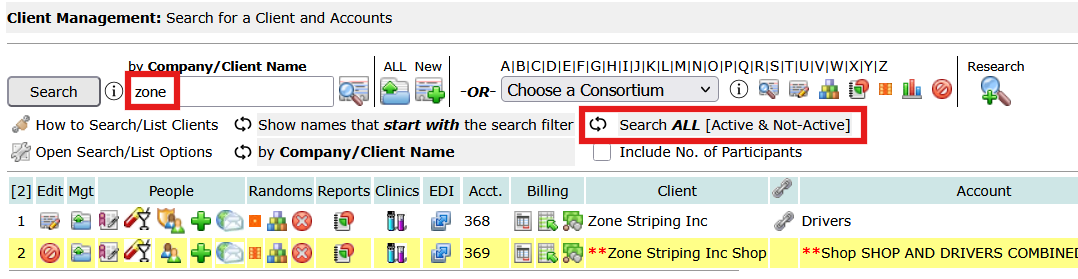
This example searches for a client whose name starts with Zone, and finds two with similar names.  The first one is account no. 368, and the second one is account no. 369.  Account numbers are assigned sequentially, so account no. 369 was probably entered accidentally, and when the user noticed it was a duplicate, it was made Not-Active.

**Note: when double asterisks (**) precede the client name it means the client is not-active and when double asterisks (**) precede the account name it means the account is not-active.  A Client can have multiple accounts and some of its accounts can be Not-Active while the Client is Active.

Any client representative, company contacts, that belong to the not-active account would not be able to login to the portal.


Strengthen Your Drug Testing Program with Better Data Visibility

Managing Active vs. Not-Active clients and accounts is more than just a search setting—it’s a critical part of maintaining clean, accurate records in your drug testing program. As organizations grow, duplicate entries, inactive accounts, and outdated client records can easily lead to confusion, reporting errors, or missed compliance requirements.

With DrugTestNetwork.com, administrators gain full control over client status, account activity, and participant data across the entire system. Whether you’re managing DOT compliance, maintaining a drug-free workplace, or overseeing SAP/EAP program participants, having clear visibility into both active and inactive records ensures nothing falls through the cracks.

Features like flexible search filters, structured client/account relationships, and centralized data management allow organizations to:

  • Quickly identify duplicate or outdated client records
  • Maintain accurate account histories for audits and reporting
  • Ensure proper inclusion or exclusion of records in compliance reports like DOT MIS
  • Improve overall employee and participant management workflows

If your organization relies on accurate data to support drug testing, employee tracking, or regulatory compliance, implementing a system that intelligently manages active and inactive records isn’t optional—it’s essential.

DrugTestNetwork.com provides a complete solution for managing these complexities, helping organizations stay organized, compliant, and efficient at every stage of the drug testing process.