For TPAs and MROs, it’s common practice to obtain a unique lab account number for each client account. The account no. is used to correlate an electronic result to its account in the database. The lab and the lab account number are also added to a test request form when the customer orders a test for an employee.
From the client portal, a client rep. (client contacts) can order a drug/alcohol test. The requisition will include the lab and lab account number when the account profile is set up to include the data. The lab is determined by the default lab in the account profile. Set the default lab as outlined below.
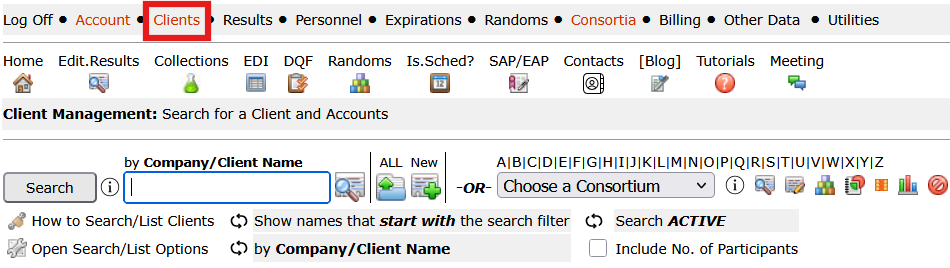
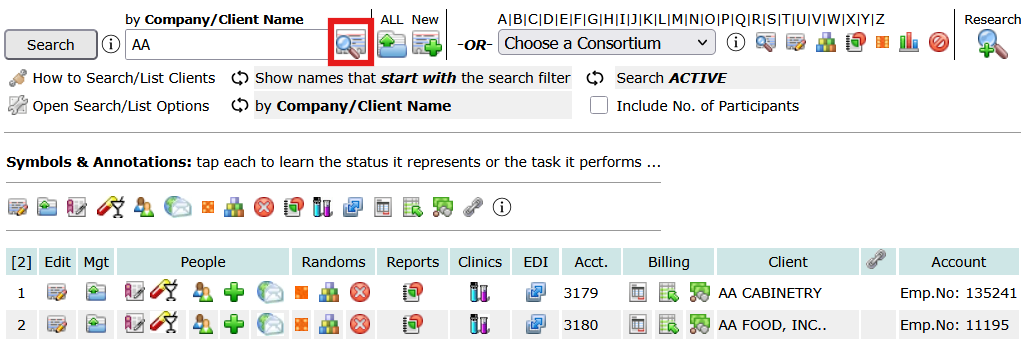
This example searched for DISA. Tap the edit icon on the left (outlined in red) to open the account profile editor for the account:
In the account profile editor, near the bottom of the page tap the triangle icon (outlined in red below) to open the section Defaults: Lab, MRO, Notification Letter: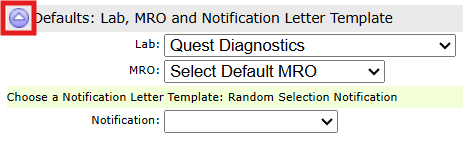
Choose the lab and save the account profile.
To assign the lab account numbers used by the account, tap the EDI icon (outlined in red below) to open the module to manage lab account numbers for the account:
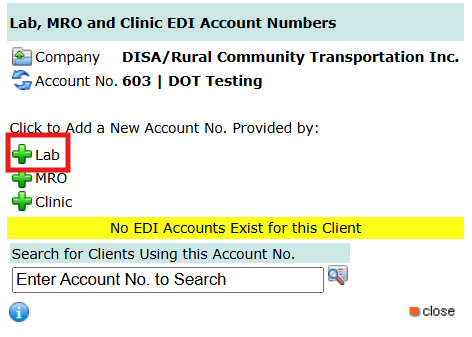
When the EDI Account Number Manager opens tap the green plus sign for Lab as outlined in red below:
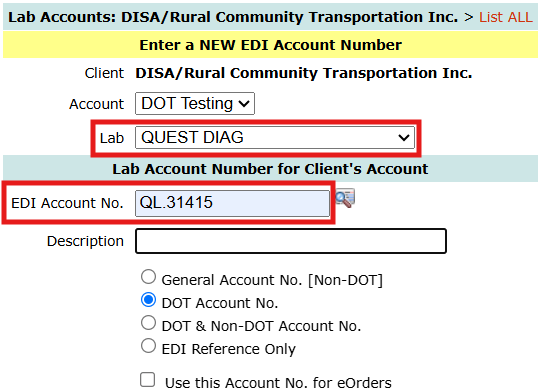
As shown below, choose the lab and enter the account number in EDI Account No. and tap the Save button. NOTE: be sure to distinguish between DOT account numbers and Non-DOT account numbers. For use with printed requisitions, only choose General (Non-DOT) or DOT, do not select the option “DOT & Non-DOT Account No.”
The requisition can also include the panel code that instructs the lab what drug tests to perform. Every panel in the DTN database is referenced by its abbreviation and the full name of the panel. For example, the standard 5 panel DOT test is often referred to as the NIDA-5 / Federal Drug Test, and each lab uses their own coding system to identify the test.
Mapping Laboratory Test Codes to Drug-Test Panels
Assigning a lab account number identifies the lab account that will be used for a client’s testing. The laboratory’s test codes should also be mapped to their corresponding drug-test panels in DrugTestNetwork.
For example, Quest Diagnostics uses laboratory test codes such as:
- 65304N — Federal DOT 5-Panel Urine Drug Test
- 65105N — Non-DOT 5-Panel DOT Look-Alike, commonly referred to as the NIDA-5 or SAMHSA-5
In DTN, each Quest test code can be associated with the panel it represents. The following screens illustrate how to select a drug-test panel and enter the corresponding laboratory test code.
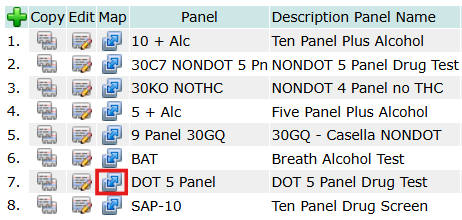
To map the code, navigate to Other_Data and list the available panels. From the listing, tap the mapping icon to open the map module for the panel. In this example, we’ll map Quest’s code 65304N to DOT 5 Panel Drug Test:
Choose the lab, enter the panel code, panel name (for reference), and click the plus sign (outlined in red below) to map the code. 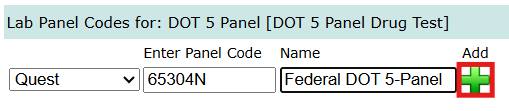
This example uses 65304N for Quest’s Federal DOT 5-Panel. You can also map CRL’s code, W215, for the Federal DOT 5-Panel. In DTN, both laboratory codes can be mapped to the same panel, DOT 5-Panel Drug Test. DTN will retrieve the corresponding code according to the client account’s default laboratory and place it on the requisition.
Once the codes have been mapped, DTN uses the client account’s default laboratory to retrieve the correct code whenever testing is requested. For example, when Quest is the default laboratory and the Federal DOT 5-Panel is selected, DTN retrieves Quest code 65304N. Check with the labs for their current codes.
The completed requisition will then include:
- The requested drug-test panel
- The laboratory-specific test code
- The client’s laboratory account information
- The participant and testing information
Including both the panel name and the laboratory test code makes the requisition a complete document that the participant can take to the collection clinic. It also provides the clinic with the information needed to order the correct test under the client’s laboratory account.


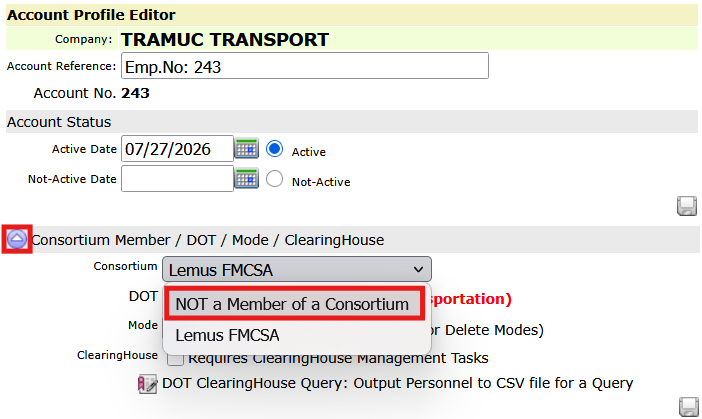
 indicates the account is a member of a consortium.
 to open the account profile editor.
 write any profile modifications to the database. Similarly, you can add an account to a consortium by choosing the consortium in the drop-down, then save the account profile.