The main data component of the drug and alcohol testing management application is the Client. Depending on how you use the application, a Client can be a company, an employer, an organization, etc. If you’re a TPA (Third Party Administrator) the client is your customer.
DrugTestNetwork organizes client/employer information using two related levels: the Client and the Account.
Understanding the difference between these two levels makes it much easier to organize employees, assign company contacts, and manage companies that have more than one testing program, location, shift, department, or other organizational division.
The Client Record
The Client represents the company or organization itself.
For example:
Acme Delivery
The company name is stored with the client record and serves as the primary identity for the organization throughout DrugTestNetwork.
When a new client is created, DrugTestNetwork automatically creates the first Account for that client.
The Account Reference
Each client can have one or more accounts. The Account Reference identifies the purpose or organizational grouping represented by an account.
Examples of Account References might include:
- DOT-FMCSA
- Drug Free Workplace
- Los Angeles
- Houston
- Morning Shift
- Night Shift
- Transportation Department
- Warehouse
If an Account Reference is not entered when the client is first created, DrugTestNetwork initially uses the company name as the Account Reference.
For example:
Client: Acme Delivery
Account Reference: Acme Delivery
When the company name and Account Reference are the same, reports normally display only the company name rather than repeating the same information.
However, when there is a useful distinction between accounts, assigning a descriptive Account Reference makes those accounts easier to identify and manage.
Example 1: A Client with One Account
Suppose Acme Delivery has only employees subject to DOT/FMCSA drug and alcohol testing.
The client could be organized as:
Client: Acme Delivery
Account: DOT-FMCSA
All employees can remain together in this one account.
In this situation, no additional accounts may be necessary.
Example 2: Separate DOT and Drug-Free Workplace Accounts
Suppose Acme Delivery has both regulated drivers and employees who participate only in the company’s non-DOT drug-free workplace program.
The company can remain a single client while the employees are divided between two accounts:
Client: Acme Delivery
- DOT-FMCSA
- Drug Free Workplace
Drivers subject to DOT requirements can be assigned to the DOT-FMCSA account, while other employees can be assigned to the Drug Free Workplace account.
This keeps both groups associated with the same company while allowing each testing population to be managed separately.
Example 3: Accounts by Geographic Location
Accounts can also represent company locations.
For example:
Client: Acme Delivery
- Los Angeles
- Houston
- Austin
Employees can be assigned to the location where they work while all three locations remain part of the same Acme Delivery client record.
This can be especially useful when different managers or contacts are responsible for employees at different locations.
Example 4: Accounts by Shift
A company may prefer to organize employees by work shift.
For example:
Client: Acme Manufacturing
- Morning
- Night
Employees working the morning shift can be maintained separately from employees working the night shift without creating two different client companies.
Example 5: Accounts by Department and Supervisor
Accounts can also represent departments within a company.
For example:
Client: Acme Industries
- Transportation
- Warehouse
- Maintenance
- Administration
Each department may have its own supervisor.
DrugTestNetwork contacts belong to the client and can then assigned to one or more of its accounts. This makes it possible to give a supervisor access only to the employees associated with the department or accounts that supervisor is responsible for.
For example:
Transportation — Robert Jones
Warehouse — Maria Lopez
Maintenance — David Smith
Robert can be assigned to the Transportation account, Maria to the Warehouse account, and David to Maintenance.
The contacts still belong to the same Acme Delivery client record, but their account assignments determine which groups of employees they are associated with.
A contact can also be assigned to more than one account when needed.
Why Add Accounts Instead of Creating Another Client?
When multiple groups of employees belong to the same company, creating additional accounts under the existing client provides a better organizational structure than creating a separate client record for every group.
The client identifies who the company is.
The Account Reference identifies which part of the company or testing population is being managed.
Accounts can therefore be used to represent distinctions such as:
- Testing programs
- Locations
- Departments
- Divisions
- Shifts
- Supervisors
- Employee classifications
There is no requirement that every client have multiple accounts. A small employer may need only one. The important point is that additional accounts are available whenever separating employees into manageable groups would be useful.
How to Create a New Client Record
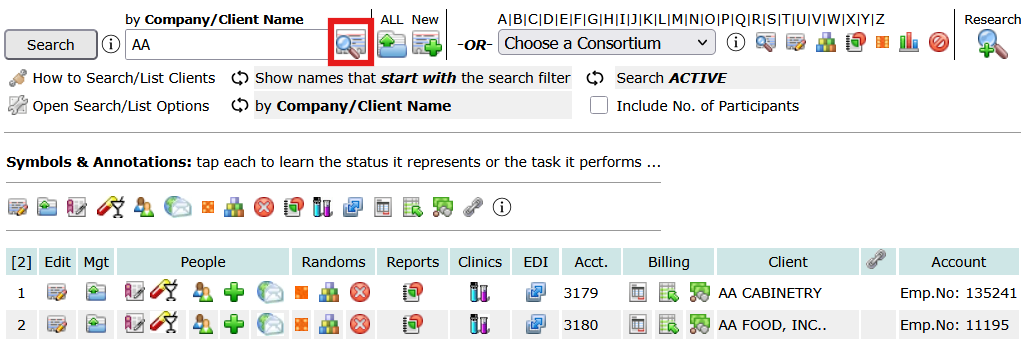
On the Client listing page, tap the New icon, outlined in red below, to add a new client record.

This will open the New Client page where you can enter some of the details in a client record: Company Name, Account Reference, Client Login ID, phone, address, and other details. The company name must be unique.
If the account is a DOT account, choose the DOT Mode. If the account will participate in consortium random selections, choose the consortium to which it will be a member. If random selections will be conducted from the account by itself, as a stand-alone pool, leave the consortium blank.
After the new client is saved, navigation returns to the Client listing page to acknowledge the client/account record was saved, and includes the new client/account record in the client listing where other aspects of the client/account can be managed.
A message confirms that the new client has been saved, and the newly created account appears in the list, highlighted as soon below so it’s easy to see the new record when multiple client accounts might be listed along with the new record.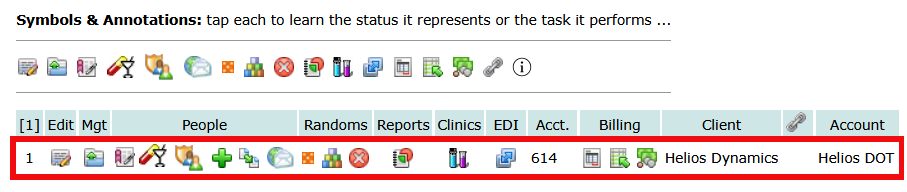
A dialog window is also displayed over the listing with options to resources to manage other client/account details:
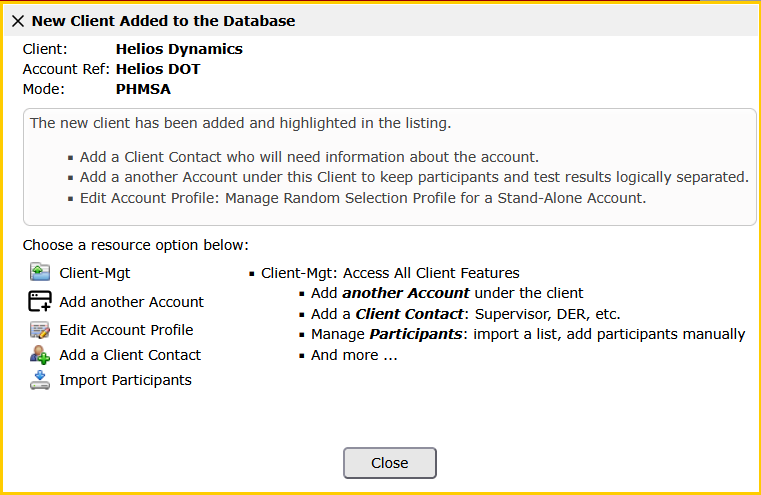
To add another account for the same company, tap the option Add another Account as shown in the screenshot above.
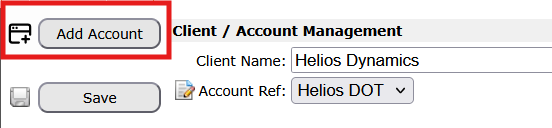
If the dialog is closed, you can tap the Client-Mgt icon for the client from the Client listing. In Client-Mgt you will find all resources for managing the client and its associated accounts.

From Client Mgt tap the button Add Account (highlighted red below):
For example, after creating:
Acme Delivery — DOT-FMCSA
the Client-Mgt option can be used to add:
Acme Delivery — Drug Free Workplace
Both accounts now belong to the same Acme Delivery client.
A Useful Way to Think About the Structure
When deciding how to organize a company, think of the structure this way:
Client = Company
Account = Group of employees within that company
Contact = Person who may be assigned responsibility for one or more of those accounts
A company with a simple workforce may require only one account. A larger or more complex organization may use several accounts to keep different employee populations organized while still maintaining a single company record.
Taking a moment to establish the appropriate account structure when a client is first added can make employee management, contact assignments, testing programs, and reporting much easier as the client grows.
The client search/list feature is outlined in this article: Clients: List & Search
Be certain to review the section Symbols and Annotations – each symbol/icon on the page represents a resource: manage data, produce reports. etc. The symbols are outlined under the section Symbols & Annotations – tapping the symbol provides an explanation about each resource the symbol represents. Symbols & Annotations are displayed after a search to list clients and appears at the top of the listing.
The example below shows the listing after searching for companies that start with AA.
Tap first symbol, the edit icon  , on the line for AA Cabinetry to open the account profile editor for the account.
The second symbol  opens the Client-Mgt resource for AA Cabinetry.
Click the report icon  for AA Cabinetry to access the report generator for the account.
Click the drug/alcohol symbol  to add a drug/alcohol test result for the AA Cabinetry.
Tap each of the symbols under Symbols & Annotations to learn more about each icon and the resource it provides.
To filter a client listing, enter a filter (AA in the example below) and click the search icon (highlighted in red):