Part-2: Step-x-Step Assigning Signature Documents to Clients

This article is a follow-up of three earlier posts:

After you have copied the Master Signature Documents into your database, you will need to assign documents to Clients.  Only documents that have been assigned to the client will be available for them to issue.

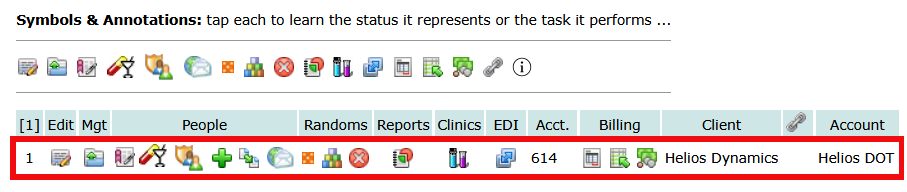
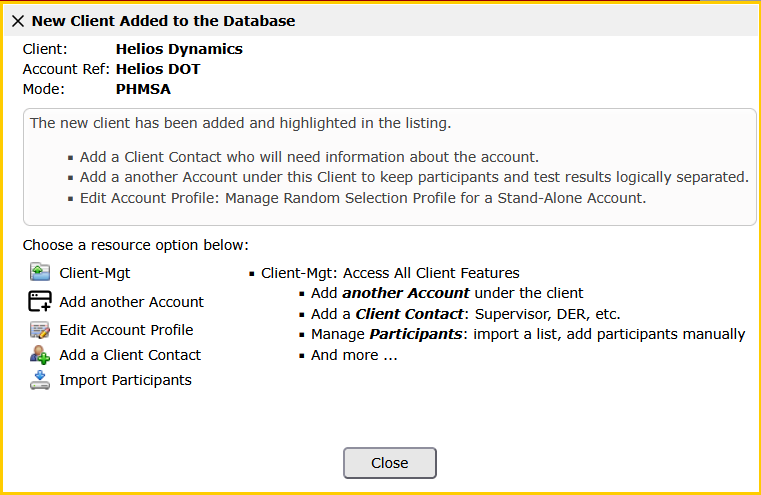
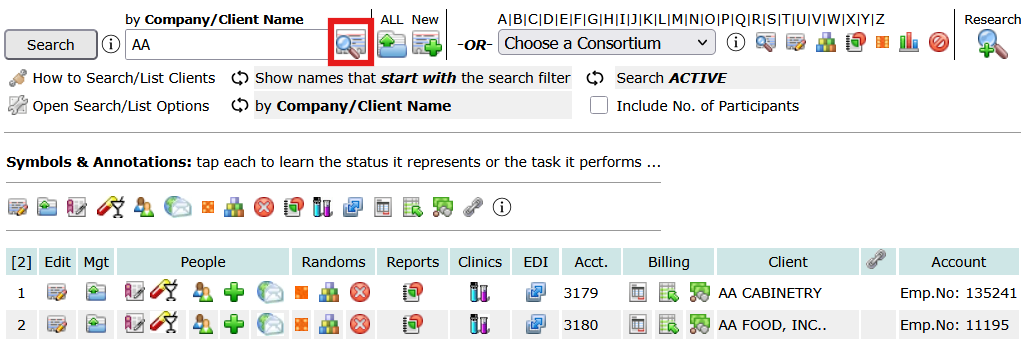
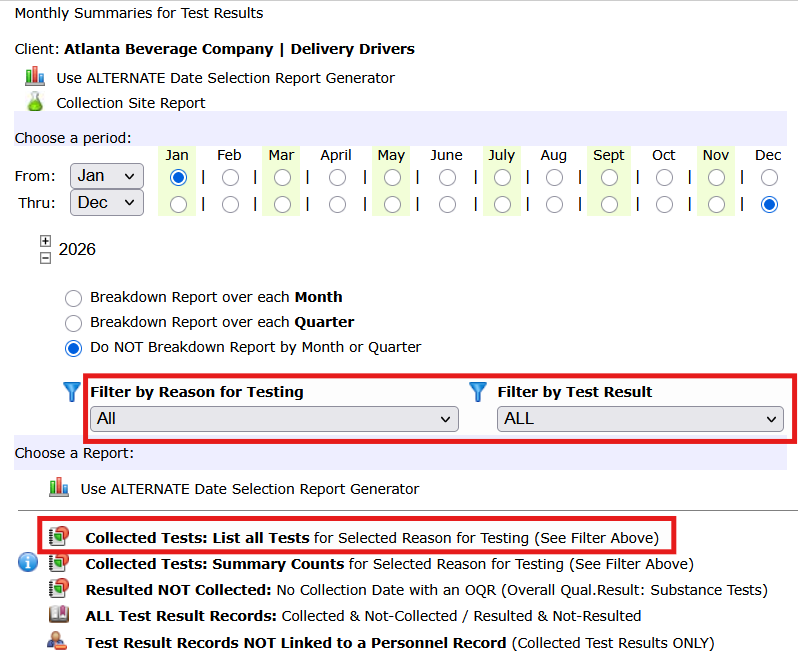
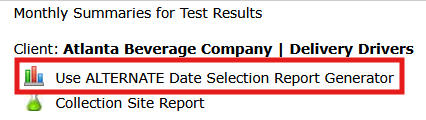
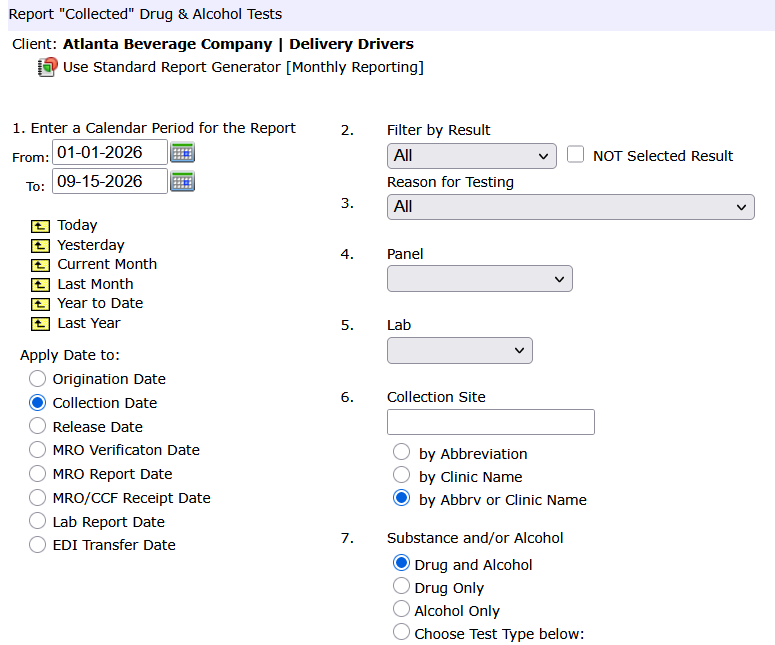
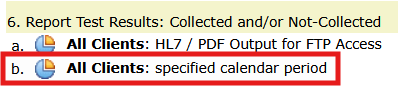
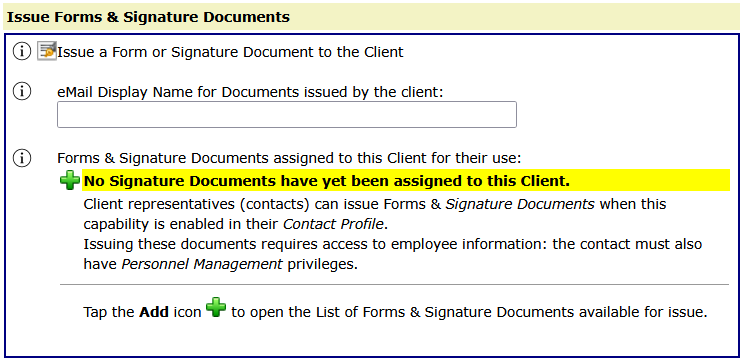
To get started, open Client-Mgt for a client.  When Client-Mgt is open, tap the button on the left Docu-Sign.

Tap the information icons on the left to read more for each detail.

From the client portal, to issue a document, open the profile dashboard for the employee who will receive the documents, choose the document or package and tap the issue option to send the email.  If the client needs to send a Road Test Certificate (RTC), the user will also open the profile dashboard for the driver, issue the RTC, and then choose the examiner who conducted the road test for the driver, and send the email.  If the client contact is the examiner, they can Self, which will open the document to complete and sign.  When the documents are completed by the employee or the examiner, the documents are saved to the employee’s document clipboard.  The employee dashboard includes links to review documents on the clipboard.


Part-2: Step-x-Step Setting Up Signature Documents for Clients

This article is a follow-up of two earlier posts:

To provide signature documents to clients, first you will need to copy the Master Signature Documents into your database.

To start, navigate to Other_Data: in the bottom section, Letters & Document Templates, and choose Signature Document Forms … as outlined in red in below:

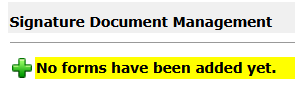
When the page opens, tap the plus symbol to add documents from the Master List:

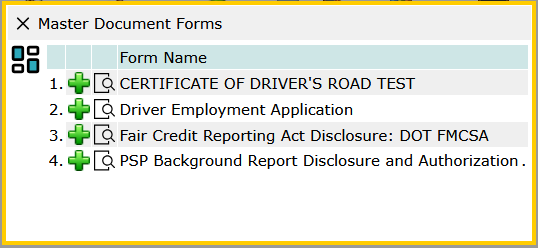
To review the document content, click the symbol: 
To add a document, tap the symbol: 

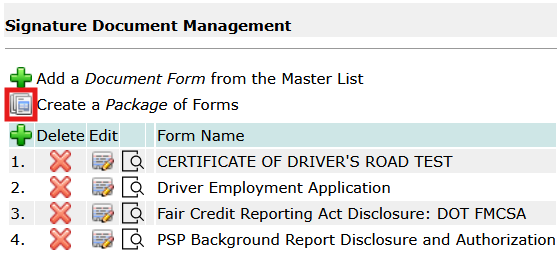
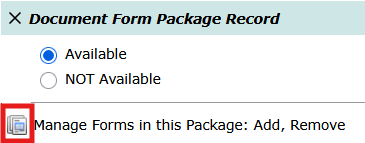
Create a Package of documents: After adding all the documents, you can create a package of documents so they can be issued in a single request.

Click the symbol highlighted in red below to create a package:

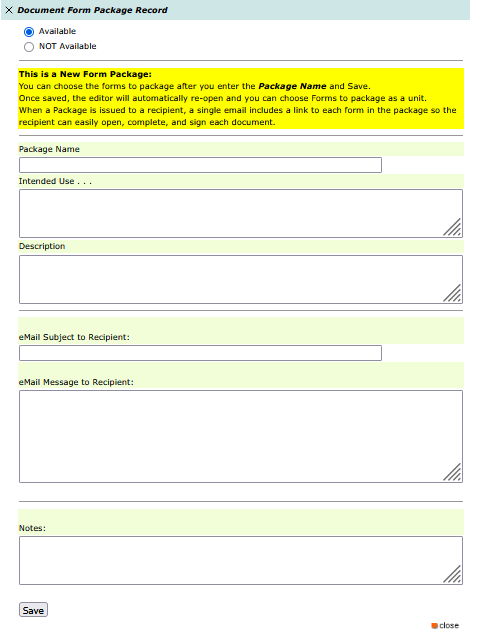
A Package has a number of components you will need to specify:

  • Package Name
  • Intended Use
  • Description
  • eMail Subject
  • eMail Message
  • Notes
Below the screenshot you will find suggestions you can copy and paste into Package Profile.

Here’s an example of what you can enter into the profile for the document package:

Package Name:
Driver Employment Application Package

Description:
A package of documents used to collect driver employment information and required authorizations during the hiring or on-boarding process. This package includes the Driver Employment Application, Fair Credit Reporting Act authorization and disclosure, and PSP authorization form.

Email Subject to Recipient:
Driver Employment Application and Authorization Forms

Email Message to Recipient:
Please complete the following documents as part of the driver employment and onboarding process.

The package includes the Driver Employment Application and authorization forms that may be required to obtain information related to your employment history, background, and driving record.

Please open each document using the links below, review the information carefully, complete any requested fields, and provide your electronic signature where required.

After each document is completed, it will be returned electronically to the company that issued the package.


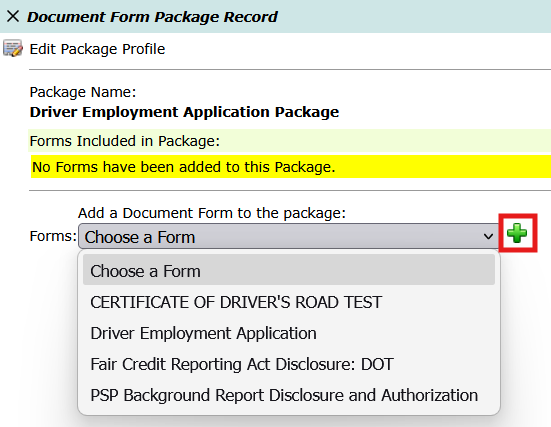
After the Package Profile is saved, go back to the package profile editor and choose the documents that will be included in the package:

From the dropdown list choose a document and tap the plus symbol to add it to the package. Add each one needed to complete the package.  The issuer will be able to send an email that includes the links and authorization credentials for each signature document in the package.

Now that the Master Documents have been copied into the database, and the package created, you can assign documents and packages to the clients.   As more documents are added to the master list, every client may not need all of them.  Assigning documents to the client makes issuing documents streamlined.

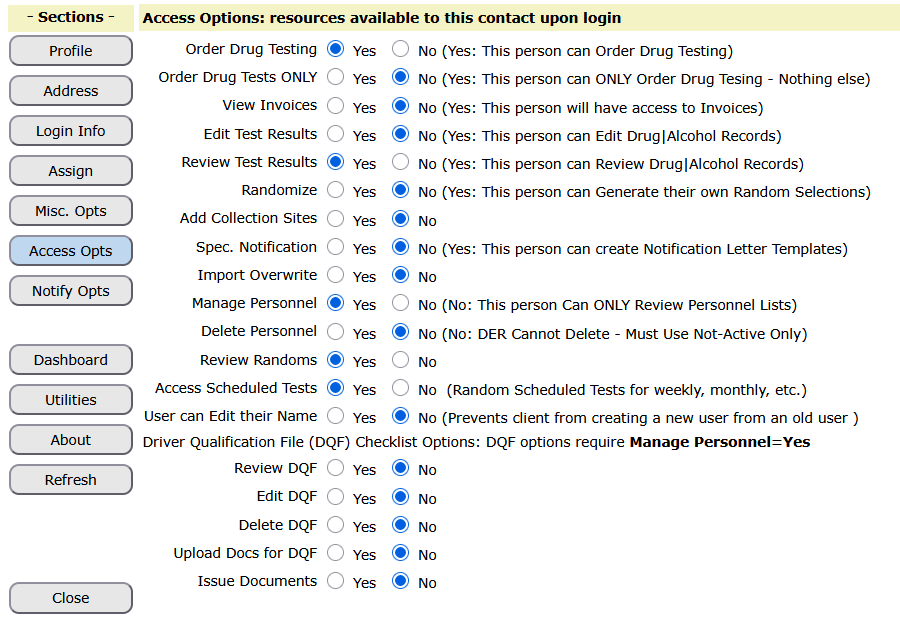
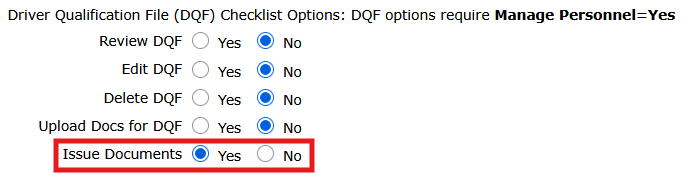
You will also need to enable the client contact to issue documents: open the contact profile editor for the contact, open the Access Opts section, and set the attribute,  Issue Documents, to Yes.

Next, assign the documents to clients.
This is covered in the article: Step 2: Assigning Signature Documents to Clients.

Setting Up Signature Documents for Clients

About Signature Documents

Signature Documents provide a way for subscribers and their clients to issue forms that need to be completed, reviewed, and signed electronically by applicants, employees, drivers, road test examiners, and other participants in the document process.

The feature is especially useful as part of an employee or driver onboarding process. Instead of separately emailing forms, waiting for completed documents to be returned, and then manually saving those documents to the employee’s record, Signature Documents provide a more integrated workflow.

For example, a client hiring a new driver may need the applicant to complete an employment application and authorization documents before employment. Those forms can be issued individually or grouped into a package and issued together as part of the applicant’s onboarding process.

Other documents may be completed later in the process. A Road Test Certificate, for example, can be issued to the road test examiner after the applicant reaches the road-test stage of the hiring process.

When a Signature Document is completed, the resulting document will be retained with the applicable participant’s records in DrugTestNetwork, helping keep employment and qualification documentation associated with the person to whom it belongs.

Because document requirements vary from one client to another, Signature Documents are configured in levels. The subscriber first chooses which documents to add from the DrugTestNetwork master list. The subscriber can then determine which of those documents each individual client is allowed to use and which client contacts have permission to issue them.

Documents can be issued individually, or multiple documents can be grouped into a package so a commonly used set of forms can be issued together.

This tutorial explains how to:

  • Add Signature Document Forms from the master list to the subscriber database.
  • Create a package of forms that can be issued together.
  • Make selected forms available to individual client accounts.
  • Grant client contacts permission to issue Signature Documents.

Available Signature Documents

The master Signature Document Forms currently include:

  • Driver Employment Application
  • Fair Credit
  • PSP Background Report Disclosure and Authorization
  • Road Test Certificate

Additional Signature Document Forms may be added to the master list as they become available.


1. Add Signature Document Forms to the Subscriber Database

Begin by selecting the Signature Document Forms that the subscriber will use. A subscriber does not need to add every form in the master list. Only the forms needed by the subscriber’s client accounts need to be selected.

From the Other Data menu, scroll to the Letter & Document Templates section near the bottom of the page.

Select:  Signature Document Forms – Manage Document Forms to Issue for a Signature

The Signature Document Forms page lists the selected documents.

To add a form to the subscriber database, tap the plus (+) icon to list the documetns from the master list and select the ones needed.

Repeat this process for each Signature Document Form the subscriber wants to make available.

Adding a form from the master list creates the subscriber’s copy of that form. The form can then be made available to selected client accounts.


2. Create a Package of Forms

When several documents are commonly issued together, they can be placed into a package. A package allows the user to select one package instead of issuing each document individually.

After the desired forms have been added to the subscriber database, select:

Create a Package of Forms

Give the package a descriptive name and select the forms that should be included in the package.

For example, a driver applicant package might contain:

  • Driver Employment Application
  • Fair Credit
  • PSP

The Road Test Certificate would be issued separately because it is normally completed later by a road test examiner.

Packages are optional. Forms can always be issued individually when a package is not appropriate.


3. Make Signature Documents Available to a Client

Adding a form to the subscriber database does not automatically make the form available to every client. This allows each client account to have access only to the Signature Document Forms it needs.

Navaigate to Clients and open Client Management for a selected client account to be configured.

From the Client Management module, tap the button Docu-Sign button. Select the forms from the subscriber’s available document list that this client should be permitted to use.

For example, one client may use the Driver Employment Application, Fair Credit, and PSP forms, while another client may only need the Road Test Certificate.

Save the client settings after making the selections.


4. Allow a Client Contact to Issue Signature Documents

The final setup step is to give the appropriate client contact permission to issue Signature Documents.

This permission determines whether the client contact can issue an available document to a person who needs to complete or sign it, such as:

  • An employee or driver applicant completing employment-related documents.
  • A road test examiner completing a Road Test Certificate.

From the client’s contact management area, open the contact who should be authorized to issue documents.

Enable the permission that allows the contact to issue Signature Documents, and then save the contact record.

Only contacts who need to issue documents should be granted this permission.


How the Signature Document Setup Works

Signature Documents move through several levels before they can be issued. Each level serves a different purpose.

“`

Master Signature DocumentsDrugTestNetwork’s master list of available forms
Subscriber Signature DocumentsForms selected from the master list and added to the subscriber database
Subscriber PackagesOptional groups of forms that can be issued together
Client Signature DocumentsSubscriber forms selected for use by an individual client account
Authorized Client ContactA client contact who has permission to issue Signature Documents
Document RecipientApplicant, employee, road test examiner, or other person who completes or signs the document

“`

This separation allows the subscriber to control both which documents each client can use and which client contacts are permitted to issue them.

For example, adding the Road Test Certificate from the master list makes it available to the subscriber, but it does not automatically make the Road Test Certificate available to every client. The subscriber must also select the Road Test Certificate for each client that needs to use it.

Likewise, making a document available to a client does not automatically give every client contact permission to issue it. The appropriate contact must also be granted Signature Document issuing privileges.


Setup Checklist

Before a client begins issuing Signature Documents, confirm that:

  • The required forms have been added from the master Signature Document Forms list.
  • Any desired packages have been created.
  • The appropriate forms have been made available to the client account.
  • The appropriate client contacts have permission to issue Signature Documents.

Once these settings are complete, the authorized client contact can begin issuing the available Signature Documents to applicants, employees, road test examiners, and other applicable document contributors.

Signature Documents: An Integrated Onboarding Resource

DrugTestNetwork’s Signature Documents feature provides subscribers with a practical way to extend the system beyond drug and alcohol testing by helping manage documents that need to be completed, signed, and retained as part of the employee or driver onboarding process.

How the feature is used will depend largely upon the type of organization using DrugTestNetwork.

For an employer subscriber, Signature Documents can become part of an internal onboarding process managed by HR or administrative personnel.

For a TPA subscriber, the same feature can be offered to employer customers as an additional service that helps manage part of their onboarding process.

In either case, the objective is the same: keep important employment and compliance documents within the same system where the employee, driver, or applicant is already being managed.

What Are Signature Documents?

Signature Documents are electronic forms that can be issued to an applicant, employee, driver, customer contact, or other designated signer.

Depending upon the document, the recipient may be asked to:

  • enter required information;
  • review disclosures or instructions;
  • provide an electronic signature;
  • acknowledge or authorize an action; and
  • complete the document for return to the subscriber or employer.

Once completed, the resulting document can be retained with the participant’s records in DrugTestNetwork.

The workflow is straightforward:

Issue the document → complete and sign the document → return the completed document to the participant’s records.

Because the process is integrated into DrugTestNetwork, the completed document does not have to be retrieved from an unrelated electronic-signature service and then manually associated with the employee.

Using Signature Documents During Onboarding

Employee and driver onboarding frequently involves much more than ordering a drug test.

A new employee or driver may need to complete an employment application, review required disclosures, provide authorizations, acknowledge company requirements, and submit other documents before beginning work.

Signature Documents allows these forms to become part of an organized electronic workflow.

A typical process might be:

  1. The applicant or employee is added to DrugTestNetwork.
  2. The appropriate Signature Documents are selected.
  3. The documents are issued electronically to the applicant or other required signer.
  4. The recipient completes and signs the documents.
  5. Completed documents are returned to the participant’s document records for later reference.

This reduces the need to print documents, obtain handwritten signatures, scan completed pages, and manually upload them back into the participant’s file.

The process can be particularly useful for employers with employees in multiple locations, remote applicants, field personnel, or decentralized HR operations.

When the Subscriber Is the Employer

DrugTestNetwork has always supported organizations that use the system directly as employers, in addition to TPAs that manage testing programs for their customers.

For an employer subscriber, the administrative users may be HR personnel, safety personnel, compliance staff, or other internal administrators responsible for employee records.

In that environment, Signature Documents represents a natural expansion of DrugTestNetwork into employee onboarding.

The accounts within the subscriber’s database may represent different ways employees are organized within the company. For example, accounts may correspond to:

  • geographic locations;
  • operating facilities;
  • divisions;
  • departments;
  • business units; or
  • other internal organizational groups.

Signature Documents can follow that same structure.

An HR administrator may therefore manage onboarding documents for employees across several facilities or departments while still retaining each employee’s completed documents with that individual’s records.

This allows DrugTestNetwork to gradually become more than a testing-management application. It can also serve as a practical employee-document and onboarding resource for organizations already using the system to manage their workforce.

When the Subscriber Is a TPA

For a TPA, the structure is somewhat different.

The accounts being managed generally represent separate employer customers rather than departments within the TPA’s own organization.

In this environment, Signature Documents gives the TPA an opportunity to provide an additional service to those customers.

The TPA may already help an employer:

  • maintain employee or driver rosters;
  • manage random testing programs;
  • order or coordinate testing;
  • monitor compliance requirements;
  • maintain driver qualification information; and
  • retain supporting documents.

Signature Documents allows the TPA to assist with another portion of the employer’s workflow.

Instead of telling the customer that a new applicant must complete several forms and leaving the employer to manage the process independently, the TPA can make those documents available through DrugTestNetwork and help establish a repeatable electronic process.

This does not require the TPA to become a complete HR or applicant-tracking provider. It simply allows the TPA to offer a useful onboarding function that complements services it already provides.

Creating Customer Stickiness

For TPAs, Signature Documents can also strengthen the relationship with employer customers.

Drug and alcohol testing is an important service, but much of the activity surrounding an employee takes place outside the actual testing event.

When the customer begins using DrugTestNetwork not only for testing, but also for onboarding documents, employee records, driver qualification information, and related administrative functions, the system becomes more integrated into the customer’s normal workflow.

That creates customer stickiness.

The value is not based upon making it difficult for a customer to leave. It comes from making the service genuinely more useful.

When an employer becomes accustomed to adding an applicant, issuing required documents, receiving completed forms, and maintaining those documents with the employee’s records, the TPA is providing more than a testing transaction. It is providing part of the customer’s operating infrastructure.

That expanded relationship can help distinguish the TPA from competitors that provide testing services alone.

Documents Can Be Issued Individually or as a Package

Not every employer requires the same onboarding documents.

DrugTestNetwork therefore allows Signature Documents to be selected from the available master documents and assigned according to the needs of the organization.

Documents may also be organized into packages.

A package is a group of documents that are commonly issued together. Instead of selecting several forms individually each time a new applicant is processed, the administrator can issue the appropriate package.

For example, an FMCSA driver onboarding package might contain:

  • Driver Employment Application
  • Fair Credit Reporting Act disclosure or authorization
  • Pre-Employment Screening Program (PSP) authorization
  • Certificate of Driver’s Road Test

The exact documents included will depend upon the employer’s hiring process, regulatory requirements, and the services being provided.

Packages make a repetitive onboarding process easier to administer while still allowing individual documents to be issued when necessary.

Keeping Documents Connected to the Participant

One of the most useful aspects of an integrated document process is what happens after the signature is obtained.

With a stand-alone electronic-signature service, the completed document may arrive by email or remain stored in a separate document account. Someone must then determine where the document belongs and transfer it into the company’s permanent records.

Signature Documents is designed around the participant already maintained in DrugTestNetwork.

When a completed document is returned to the participant’s document clipboard, it remains associated with the employee or driver for whom it was issued.

This gives the administrator a more complete record and reduces the possibility that an important document will remain in an email inbox, downloads folder, shared drive, or unrelated electronic-signature system.

A Practical Starting Point for Onboarding

Signature Documents should not necessarily be viewed as an attempt to replace a complete human-resources management system.

Its value is that it can address a focused and useful portion of onboarding within a system the subscriber already uses.

For an employer, that may mean allowing HR personnel to electronically issue and retain commonly required employment documents.

For a TPA, it may mean providing customers with a convenient onboarding service alongside testing and compliance management.

A smaller employer may need nothing more than a reliable way to send several important documents to a new employee, obtain the required information and signatures, and retain the completed forms.

A larger employer may gradually incorporate additional forms and workflows as DrugTestNetwork becomes more closely integrated with its HR processes.

The feature can therefore grow according to the needs of the subscriber.

Building a Repeatable Process

As Signature Documents are introduced, administrators should consider which documents are routinely required for different groups of employees or customers.

An employer may create different packages for drivers, office personnel, warehouse employees, or individual facilities.

A TPA may create packages based upon the types of employers it serves or the regulatory programs it manages.

Once those requirements have been identified, the process becomes repeatable:

Add the applicant → select the appropriate documents or package → issue the documents → receive the completed documents.

The more consistent the process becomes, the more naturally Signature Documents can become part of normal employee administration.

Extending the Value of DrugTestNetwork

Signature Documents represents part of a broader evolution of DrugTestNetwork.

The employee or driver record is already the central point for testing history, compliance information, qualification records, and related documents. Adding onboarding documents extends that same concept to the beginning of the employment relationship.

For employer subscribers, that means DrugTestNetwork can increasingly support the internal HR and administrative processes associated with managing employees.

For TPAs, it means the platform can support a broader range of services that help customers manage their workforce while strengthening the continuing relationship between the TPA and the employer.

In both cases, the principle is the same:

Use the information and organizational structure already maintained in DrugTestNetwork to make another part of employee administration easier.

Getting Started

The best approach is to begin with a small, clearly defined onboarding process.

Identify the Signature Documents that are most commonly required, assign them to the appropriate accounts, organize frequently used documents into packages where appropriate, and begin issuing them as new applicants or employees are added.

Once the workflow is established, additional documents and packages can be introduced as the organization’s needs become clear.

Signature Documents is designed to make that process incremental: start with the forms that provide immediate value, establish a consistent workflow, and expand the on-boarding process as the subscriber or customer becomes ready for additional capabilities.