
This article is a follow-up of three earlier posts:
- Signature Documents: An Integrated On-Boarding Resource
- General Overview: Setting Up Signature Documents for Clients
- Step 1: Setting Up Signature Documents for Clients from Master Documents
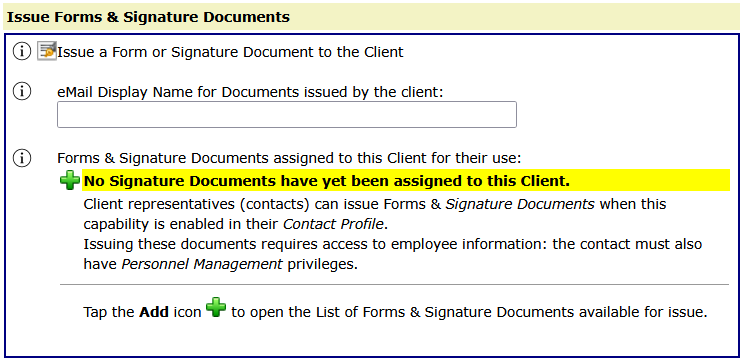
After you have copied the Master Signature Documents into your database, you will need to assign documents to Clients. Only documents that have been assigned to the client will be available for them to issue.
To get started, open Client-Mgt for a client. When Client-Mgt is open, tap the button on the left Docu-Sign.
Tap the information icons on the left to read more for each detail.
From the client portal, to issue a document, open the profile dashboard for the employee who will receive the documents, choose the document or package and tap the issue option to send the email. If the client needs to send a Road Test Certificate (RTC), the user will also open the profile dashboard for the driver, issue the RTC, and then choose the examiner who conducted the road test for the driver, and send the email. If the client contact is the examiner, they can Self, which will open the document to complete and sign. When the documents are completed by the employee or the examiner, the documents are saved to the employee’s document clipboard. The employee dashboard includes links to review documents on the clipboard.