
Under the Other Data menu, you will find the resource to list drug test panels. To add a new drug test panel, first tap the option to list panels:

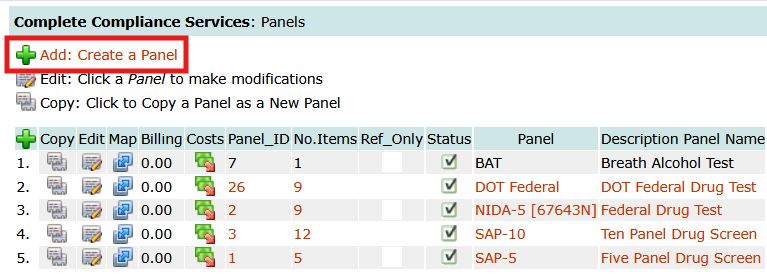
From the panel listing, tap the option to add a new panel, which will open the panel editor:
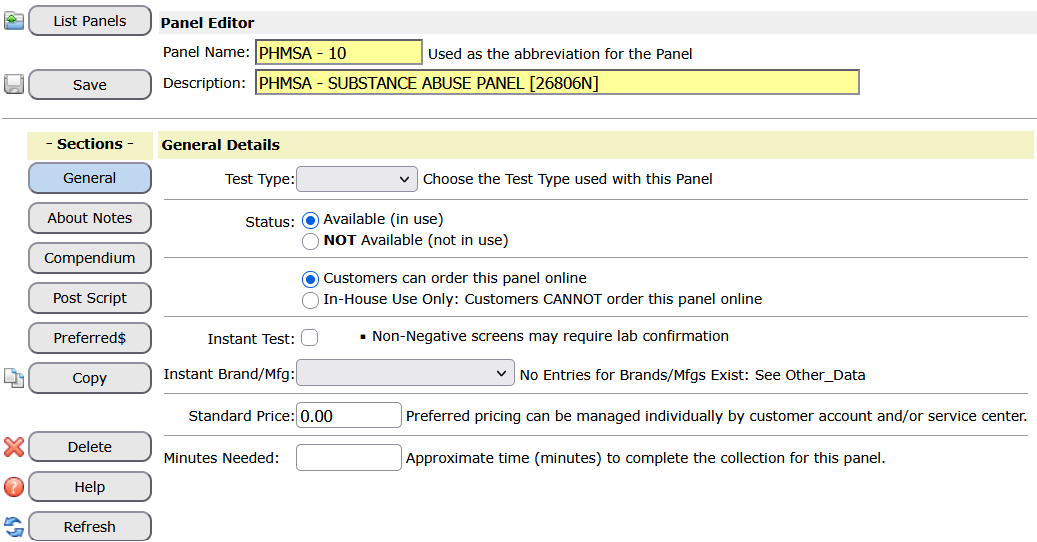
From the panel editor enter the Panel Name and Description, set the test type, and save:
After you save, tap the Compendium button to choose the substances that will be tested:
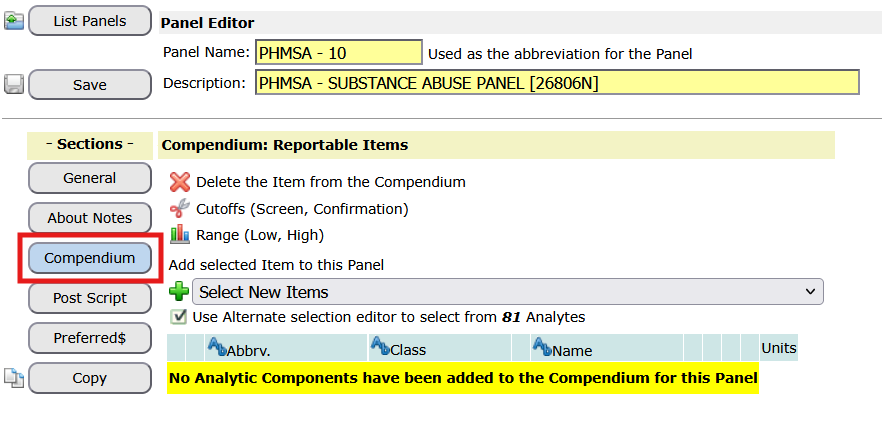
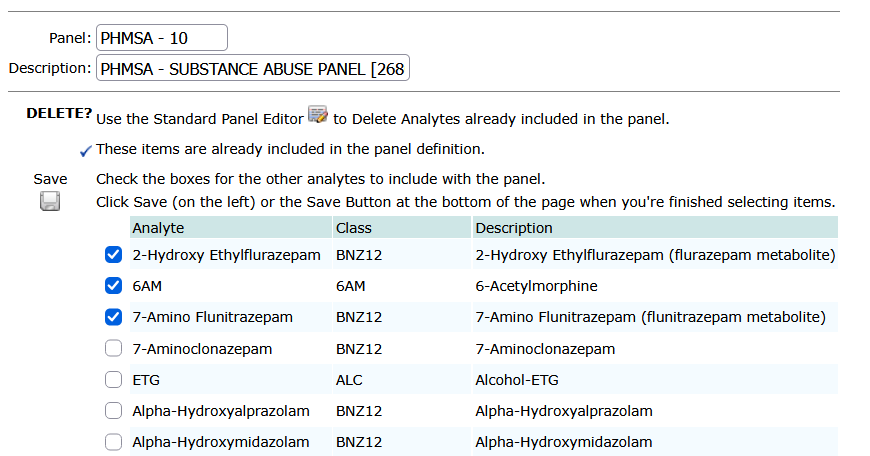
From the drop down, where it says Select New Items, choose a substance and tap the plus-sign on the left to add it to the panel. Alternatively, tap the check box below (Use Alternate selection editor …) which will open a list of all substances in the database where you can check a box for each substance and add them all to the panel in a single request.
The example below, the 3 substances checked will get added to the panel when you tap the save icon on the left at the top of the list.
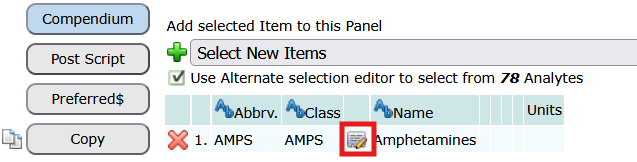
When the substance is added the compendium, you can edit the screen and cutoff values: click the edit symbol. Some substances in the list of reportable items might already have the cutoffs specified, and when the substance is selected its values are carried across into the panel’s compendium, where you can edit the values to reflect the panel’s requirements.
If the panel will be used to order tests at Quest or LabCorp clinics, you will have to register the lab’s panel code against the panel.
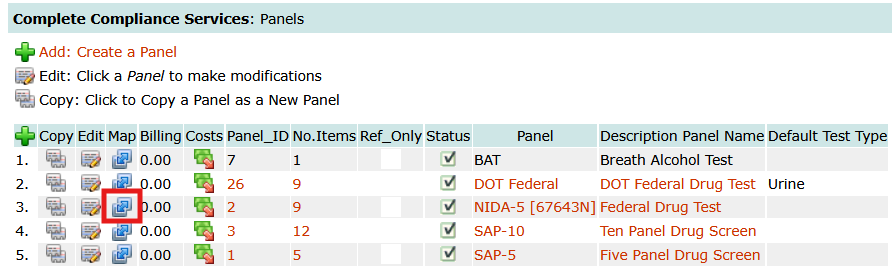
From the panel listing, click the Map symbol as highlighted below.
In the areas provided, choose the lab, enter the panel code, and the lab panel name, and tap the green add symbol to save the record.
