Client contacts can login to their account to add and remove particpants, review drug/alcohol reports, review random selections, issue signature documents to participants and employee applicants, and more.
In this example, we’ll review how to allow a client representative from Russo Brothers Transport to login and review reports and manage participants (add and remove).
Under the Clients menu page, search for Russo, tap the client-mgt icon (outlined in red below) to open the Client-Mgt resource for the client:
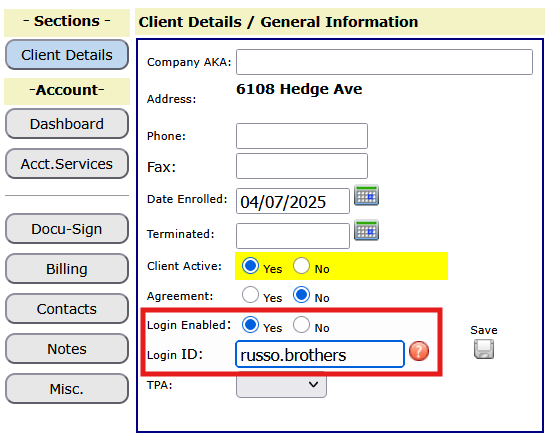
From Client-Mgt, enter a Login ID for the company. In this example russo.brothers must be unique across all companies managed by the TPA subscriber. Also, be certain to set Login Enabled to Yes. Be sure to save the client record. Next, you will want to review the Contact (company representative who will login) and make sure their profile is set up to log-in.
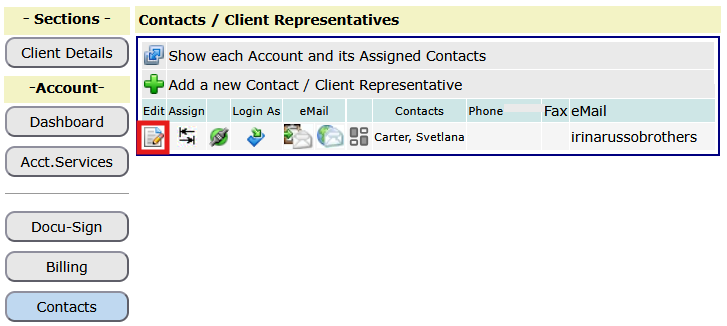
Tap the Contacts button to review the contacts for the company. To edit the profile for the contact, tap the edit symbol (outlined in red). From the contact profile editor you will set the contact’s login ID and password and set their attributes for the features they can access in the client portal.
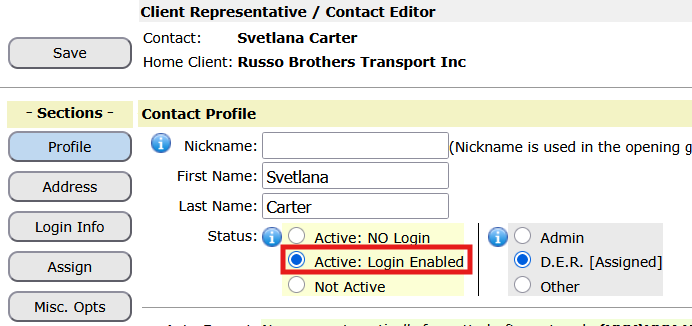
In the contact profile editor set the contacts login attribute to Login Enabled as shown outlined in red below:
In the contact profile editor, click the Login Info button to open the section and click Reset User ID & Password (outlined in red below):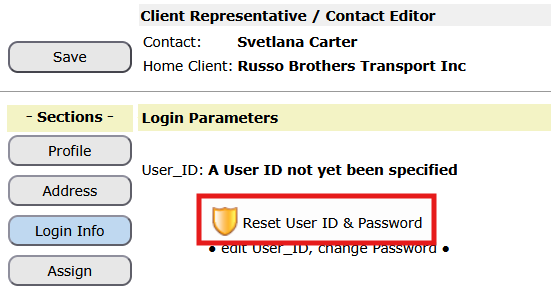
Click Auto Set User_ID and Password to set automatically set those login components for the contact, and click the Save button. Note: the contact change change their login parameters from the portal. Please tap the info icons  to read more about each of the options on this page.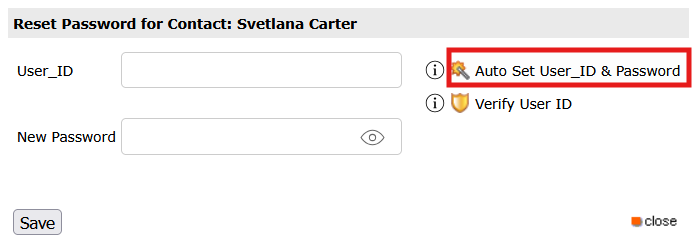
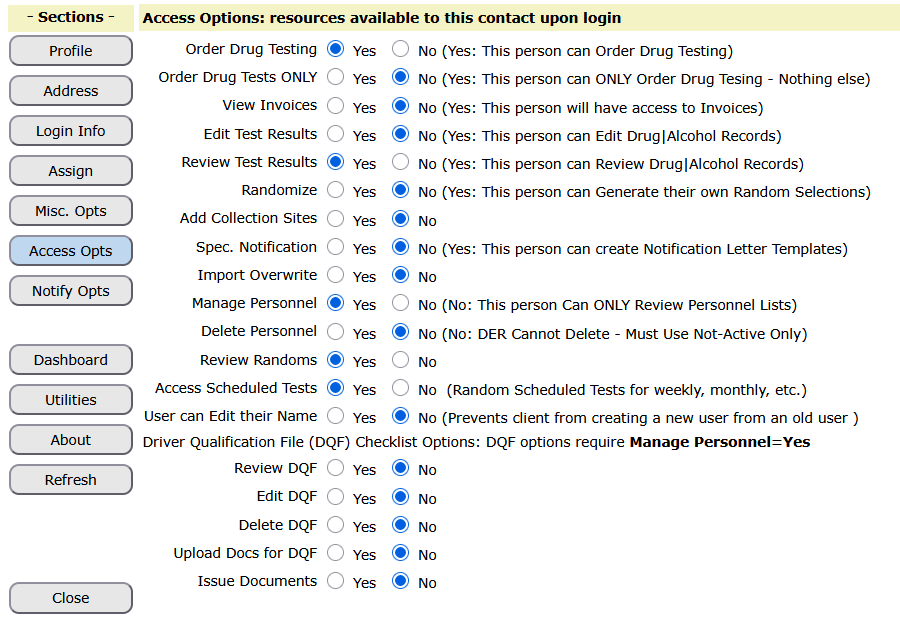
Now you can set up the attributes that control what the contact can do when they log-in. From the Contact profile editor tap the button Access Opts to open the section.
The attributes below, set to Yes, are recommended for most users. When the options have been set, be sure to tap the Save button and save the contact profile record.
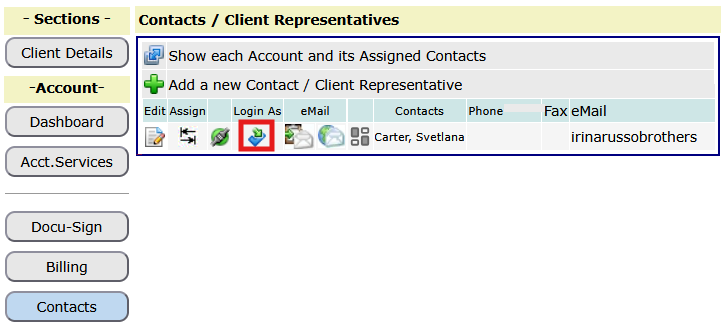
Now, if you would like to login as this contact, from the Contacts section of the Client-Mgt resource, tap the option Login As. This will log you in as the contact. Note: when you login to the client portal, you will be logged out as the admin user and will have to log back in when you’re finished exploring the client portal.
Also note: you can email the contact their login info by clicking the email symbol shown below, immediately to the right of the Login As icon.
Click this  to email the contact their login information and instructions with the link to login.