Clearinghouse Data File Format

DrugTestNetwork  Clearinghouse Export Format: Include Company Row / Column (For Your Convenience)

DrugTestNetwork exports DOT Clearinghouse batch query data in the expected column order required for upload.

The DOT requires Text Tab-Delimited – NOT CSV.  By default, DrugTestNetwork generates the file as CSV so it opens easily in Excel for review when you click on the file from the downloads folder.

Why You May See an Extra Company Row or Column

During export, you may choose to include the Company (Employer) name for your convenience:

  • Company name as a row above the listing: Helpful for printing or quick visual confirmation of the employer tied to the export.
  • Company name as a trailing column: Helpful when exporting multiple employers in one request, so you can filter and split the results in Excel.

Important: The extra row and/or column is provided for review and organization only
and is not part of the DOT Clearinghouse batch upload format.


Before Submitting to the DOT Clearinghouse

The DOT Clearinghouse batch upload will be rejected if the file contains extra rows, extra columns, or does not match the required format.

Validation Checklist

  • Remove any extra header rows (such as a company name line above the data).
  • Remove any extra columns (such as a trailing Employer/Company column).
  • Confirm the file contains only the required Clearinghouse columns, in the correct order.
  • Save the final file as Text (Tab-delimited) before uploading.
Validation Warning:
DrugTestNetwork (DTN) may include employer identifiers for convenience when reviewing or splitting exports in Excel.
These must be removed before submission. The final upload file must contain
only the required Clearinghouse columns and must be saved as Tab-delimited text.

Excel: Save the File as “Text (Tab-delimited)”

After reviewing (and, if needed, splitting the file by employer), use the steps below to create a
Clearinghouse-ready upload file.

  1. Open the export in Excel.
  2. If you exported multiple employers:
    use the employer/company column (if present) to filter the sheet to one employer at a time,
    then copy the filtered rows to a new worksheet/workbook.
  3. Remove non-Clearinghouse content:
    • Delete any company-name header row above the data.
    • Delete any extra trailing employer/company column.
  4. Confirm the required Clearinghouse columns remain(and are in the required order).Tip: Make sure there are no blank columns and no additional notes in the sheet.
  5. Go to File > Save As.
  6. Choose a location and file name (recommended: include employer name and date).
  7. In Save as type, select Text (Tab delimited) (*.txt).
  8. Click Save.
  9. If Excel shows a warning such as “This format only supports one sheet” or “Some features may be lost,”
    click OK or Yes to continue (this is expected for tab-delimited exports).
Best Practice:
Submit one tab-delimited file per employer. If your DTN export includes multiple employers, split them in Excel first, then save each employer’s file separately as Text (Tab-delimited).

About DOT Clearinghouse Queries

About DOT Clearinghouse Queries

The DOT Drug & Alcohol Clearinghouse requires employers (or their designated service agents) to run specific types of queries on CDL drivers for compliance. Each query type serves a different purpose depending on when the driver is being checked and what level of information is required.

DrugTestNetwork will output the data, formatted properly, into a file you can upload directly to the DOT through your Clearinghouse Account for a “batch” query.  You can create a file for multiple companies or an individual company and submit them all separately as needed.  Read about the Required File Format.

In batch (.txt) uploads, query types are commonly represented as numeric values:
1, 2, 3, and 4.


Query Type 1: Limited Query

Purpose: Confirms whether a driver has any drug or alcohol violations recorded in the Clearinghouse.

  • What it returns: Yes/No only (no violation details)
  • Consent required: General (standing) consent on file
  • When to use: Annual checks for currently employed CDL drivers (when consent is already on file)

Important: If a Limited Query indicates a violation exists, you must perform a
Full Query (Type 2) to view details.


Query Type 2: Full Query

Purpose: Retrieves detailed Clearinghouse information, including violation and Return-to-Duty status.

  • What it returns: Violation details, dates, RTD/SAP status (where applicable)
  • Consent required: Driver electronic consent for each Full Query
  • When to use: When details are required (e.g., after a violation is found or to confirm RTD status)

Full Queries are used whenever an employer needs the details behind a “violation found” result or needs to verify a driver’s eligibility status following a violation.


Query Type 3: Pre-Employment Full Query

Purpose: A mandatory Full Query performed before allowing a driver to perform safety-sensitive duties.

  • What it returns: Same detailed results as a Full Query
  • Consent required: Driver electronic consent
  • When to use: Pre-employment screening before hiring / onboarding a CDL driver for safety-sensitive work

Key point: A Limited Query (Type 1 or Type 4) cannot be used for pre-employment purposes.
Pre-employment screening requires a Full Query.


Query Type 4: Limited Query with Automatic Consent Request

Purpose: Runs a Limited Query (Yes/No only) and, if general consent is missing, automatically requests it from the driver.

  • What it returns: Yes/No only (no violation details)
  • Consent behavior:
    • If general consent already exists, the Limited Query proceeds normally.
    • If general consent is missing, the Clearinghouse automatically sends a consent request to the driver.
  • When to use: Annual Limited Queries when consent may be missing for some drivers (especially in large batch uploads)

Important: Type 4 still returns only a Limited result. If a violation is found, you must follow up with a Full Query (Type 2) to view details.


Quick “When to Use” Summary

  • Type 1: Annual Limited Query when general consent is already on file.
  • Type 2: Full Query when detailed results are required (including RTD/SAP status).
  • Type 3: Required Full Query for pre-employment screening before safety-sensitive work.
  • Type 4: Annual Limited Query when general consent may be missing; automatically requests consent if needed.

Rule of thumb:
Limited Queries (Types 1 & 4) answer: “Does a violation exist?”
Full Queries (Types 2 & 3) answer: “What are the details?”


Quick Comparison Table

Query Type Name Returns Details? Consent Typical Use
1 Limited Query No (Yes/No only) General consent Annual checks
2 Full Query Yes Electronic consent Details / RTD status
3 Pre-Employment Full Query Yes Electronic consent Pre-hire screening
4 Limited Query with Automatic Consent Request No (Yes/No only) Auto-requests general consent if missing Annual checks at scale

How do I manage the DOT Clearinghouse ?

If you employ FMCSA drivers, you will need to report the list of drivers to the DOT Clearinghouse .

If you’re a TPA (Third Party Administrator) managing driver lists for employers, you can manage their Clearinghouse compliance.

To start, you must have a Clearinghouse account: go to the DOT website to create your account.

To output a list of drivers to an Excel Spreadsheet (in CSV format – Comma Separated Values) to submit to the Clearinghouse, you will have to export all the drivers in an account and remove any drivers that you don’t need to report.

To export the list, first find the client account, click the personnel management icon  . When the management page opens, on the right, choose the option:
DOT ClearingHouse Query: Output Personnel to CSV file for a Query.

You can submit the entire CSV file to the DOT or edit the spreadsheet so only specific drivers are included.

Here are some frequent questions users ask about the DOT Clearinghouse:

What is the Clearinghouse?

The Clearinghouse is a secure online database that gives employers, the Federal Motor Carrier Safety Administration (FMCSA), State Driver Licensing Agencies (SDLAs), and State law enforcement personnel real-time information about commercial driver’s license (CDL) and commercial learner’s permit (CLP) holders’ drug and alcohol program violations.

The Clearinghouse contains records of violations of drug and alcohol prohibitions in 49 CFR Part 382, Subpart B, including positive drug or alcohol test results and test refusals. When a driver completes the return-to-duty (RTD) process and follow-up testing plan, this information is also recorded in the Clearinghouse.
Last Updated : January 08, 2020

Are employers required to query the Clearinghouse or report drug and alcohol program violations for drivers who do not hold a commercial driver’s license (CDL) or commercial learner’s permit (CLP)?

Only employers who employ drivers subject to the licensing requirements in 49 CFR Part 383 and the drug and alcohol testing requirements in 49 CFR Part 382 are required to query or report information in the Clearinghouse. However, employers of drivers not holding a CDL or CLP must still comply with the driver investigation requirements of § 391.23(e), which includes drug and alcohol violation history.
Last Updated : May 13, 2022

Can an employer or medical review officer (MRO) enter a drug and alcohol program violation in a CDL driver’s Clearinghouse record if the driver is not registered for the Clearinghouse?

Yes. When a violation is entered, the Clearinghouse associates it with a driver’s commercial driver’s license (CDL) information. This will be recorded even if the driver has not registered for the Clearinghouse. When an employer queries a driver’s information in the Clearinghouse (with the appropriate consent), they will enter the driver’s CDL information to verify if any violations are associated with that driver’s CDL.

A driver is required to enter their CDL information during their Clearinghouse registration. This allows them to view any violation or return-to-duty (RTD) information associated with their CDL.
Last Updated : January 08, 2020

When One or Both Parts of a Random Test are NOT Collected

A Random Test, sometimes requires both a Drug and a separate Alcohol test. However, there are cases when only one component of the test (e.g., drug or alcohol) was actually conducted. This can happen for a number of reasons. For some compliance considerations, you may want to record why the test was not conducted, and indicate a reason in the report record, for each test component not conducted. If the Date of Collection is set, the test is considered collected and will count toward the annual random selection percentages.  Keep in mind, if a random drug test record is not completed, it will not create any issue with your data or statistical reports.  The record simply exists as an incomplete random test. If you issue non-completed random test reports to the client, these tests will continue to be included.  Random test result records with a collection date or an Overall Qualitative Result are considered resolved. If you resolve the record, the tests will not be included in the non-completed reports.  However, if you don’t want the tests to contribute to the annual percentages, you can leave the collection date blank or, if you enter a collection date, you can use a special Overall Qualitative Result (OQR) that has its attribute set that prevents the test from getting counted as a collected test.  When you use a special OQR, the collection date can then serve as the date the record was resolved.

For example, you might consider these OQRs:

  • Not Conducted
  • No Longer Employed
  • Test Overlooked
If an OQR has the attribute set, Does NOT Contribute to Random Selection Statistics, it prevents the test from getting counted.  See below for instructions to add these OQRs if they are not already in your database.

For tests that were not conducted, follow the guidance below:

Open the test result in the Full Record Editor where you can manage the OQR for the drug and alcohol tests.

You have three options:
Option 1: Omit the Specimen Type

In the Full Record Editor, where you see “Specimen Type” for the drug or “Alcohol Test” for the type of alcohol test to conduct, select the option: Not Tested (or blank if Not Tested isn’t found). Using the option implies the test was not required.
This indicates that no test was required or performed for that portion.
The test result will not be included in the random selection statistics.

Option 2: Use a Special OQR (Overall Qualitative Result) that prevents the test (drug or alcohol) from getting counted. If a collection occurred but one part of the test was overlooked, you can set the OQR for that component using one of the special OQRs.

Option 3: Use OQR Participant Is No Longer Employed

In some cases, the participant may no longer be employed by the company at the time of the scheduled test. The user may still wish to complete the record for data management purposes.

This allows the record to be marked complete while excluding the test from statistics.

To add new OQR with the special attribute:

  1. Navigate to: Other-Data and tap the option: 
    Test Result Codes: Overall Qualitative Results [OQR]
  2. Tap the option to add a new OQR, such as:Test Collection Overlooked
  3. Set check-box for the attribute: Does NOT Contribute to Random selection statistics (see image below).
  4. In the Full Record Editor, apply this OQR to the drug or alcohol component that was not collected.

This ensures that:

  • The urine (drug) test does not count toward annual random selection stats.
  • The Collection Date still applies — for example, to record the alcohol test.

Summary Logic

  • If a Collection Date is entered:
    • The test is normally counted for statistics.
    • Unless the Specimen Type is blank or the selected OQR is set to one marked  Does NOT Contribute to Random selection statistics.

Tip

Use these procedures for cases such as participant not available, overlooked test, or no longer employed. These methods help you maintain a complete record while ensuring your random test statistics remain accurate.

Personnel Menu: Cleaner Presentation

In DrugTestNetwork, the Personnel menu lets you search for people (donors, participants, employees, etc.) across all accounts.  When you find the person you can edit their profile, open their dashboard, create a new drug / alcohol test result record, get a list of all their drug and alcohol test result reports, and more.

The feature now has a new streamlined presentation for less clutter on the page with the same full control of the search.

Click the about icon  to get an overview how search works.

Click the services icon   to read how to easily manage the search options.

Click the wrench icon  to open the Search Options Panel where you’ll find all the options fully presented similarly as in the earlier version of the feature.

Use compact icons  to cycle through search options without clutter.

How to Use the Search Tools

1. Cycle Through Options Using Icons

  • Each of the four search option categories shows an icon control  that cycles through the options in that section when clicked.
  • The label beside the icon updates to show your current selection.

2. Open the Full Search Panel

  • Click on the wrench icon or the label Open Options Panel.
  • Review and change all filters, including Name and ID fields.
  • Choose:
    • Search – run the search immediately
    • OK – apply changes and close the pane


New Feature: Contact Dashboard with Address Copy Tools

There’s a new feature in the Client-Mgt module of DrugTestNetwork.com.

When you open Client-Mgt, you will find the the contact(s) assigned to the account on the Client Dashboard section or you can open the Contacts section where all contacts for the client are listed.

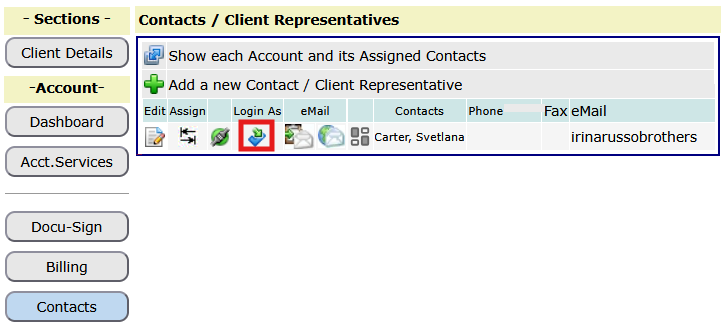
Click the icon  presented next to each contact to open their dashboard.

Open the profile editor or launch the Contact Dashboard directly from the contact list. The dashboard view presents key contact information and management features for the contact.

What’s New

  • New Formatted Dashboard for the Contact:
    After editing and saving a contact’s profile, the contact’s dashboard is presented to acknowledge the record has been saved and provide management utilities for the contact, for example: open the contact profile editor, send an email, account assignments, etc.
  • Quick Access to Contact Info:
    The dashboard also features the contact’s address, phone numbers and email, making it easy to reference or verify at a glance.
  • One-Click Copy Address Tool:
    A new Copy button next to the address allows users to copy the full address to the clipboard with a single click—ideal for emails, shipping labels, forms, or internal notes.

This update is part of a continued effort to make client management easier, richer, and more intuitive for our users. Whether you’re editing contact details or simply referencing client addresses, the new dashboard view brings everything you need into one simple interface.

Hidden Feature: Print or Copy Contact Addresses from Reports

Hidden Time-Saver: Click the Company Name to Access Mailing Tools

There’s a hidden feature built into the Test Result Report page when it’s displayed for printing and provides a convenient way to print the company address when you need to mail the report to the recipient.

When viewing a printable version of a test result report, click the company name at the upper right of the page to open a helpful popup. This feature is designed for those times when you need to mail a physical copy of the report to a company contact — and it makes the process easy.

Here’s what the popup includes:

  •  Full Contact List for the Client
    Quickly browse all representatives associated with the company. Whether you’re mailing results to HR, a DER, or another contact, just pick the appropriate recipient.
  •  Printable Address Option
    Print a formatted mailing address directly from the popup — perfect for envelope labels or cover sheets.
  •  Dashboard with Copy-to-Clipboard Feature
    Want to paste the address into a Word doc, label template, or email? There’s a link to the contact’s dashboard that includes a one-click “Copy Address” feature.  When you click the address from the report to open the Print Address feature, every contact for the client is listed.  Use the radio button to select a contact with their mailing address.  Also, appearing next to each contact is the dashboard icon.  Click the icon to open the dashboard for the contact where you will find a feature to copy the contact’s address to your clipboard which you can use to paste (ctrl-v)  into a Word document, for example.

This feature is designed as a link in the text of the address on the report so there are no extra visible icons or instructions that clutter the presentation of the report and stays out of the way unless you need it. And when you do, it will save time and eliminate the need to dig for addresses elsewhere in the system.


Try it next time you view a test result report — just click the company name to explore.

Menu Navigation Changes: Randoms [List Randoms]

From the main menu, the menu choice Randoms, navigated to the module that lists random selections for all accounts and consortia for dates specified by the user.  The page also included other report options the developers felt did not best serve the user from that page.  Since the change, in order to navigate in a single click directly to the List Randoms module, you will find a new short cut icon under the menu:

The updated menu now navigates to a page that presents the List Randoms option as the first link on the page, and includes a variety of other reports to help users better manage random selections.

The first option on the page is where the Randoms menu previously navigated: List Randoms by Date.  The other options on the new page provide data management reports so users can list accounts that need randoms conducted by a scheduled date.  You will also find a link to a feature that send emails to accounts with a notification of upcoming randoms so they can update their participant list.

For many DTN subscribers, random selections are not conducted for every account, as a Stand Alone account or as a member of a consortium.

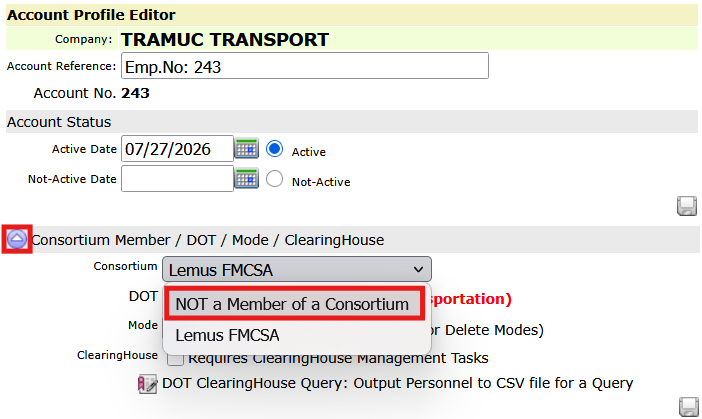
For an account to be included in reports related to random selection, the account must be a member of a consortium, or considered Stand Alone. To be a Stand Alone account for random selection report considerations, its Random Selection Participant attribute must be turned ON (set to Yes).  You will find the attribute, Random Selection Participant, (Participates in Random Selections) in the account profile editor under the section: Random Selection Parameters.

Stand Alone Accounts & the Random Selection Participant Attribute:

An account that’s a member of a consortium is automatically considered a random selection participant.

If an account is not a member of a consortium, it’s considered a Stand Alone account, however, Stand Alone accounts are included in random selection summary reports, scheduled random selections, and mass emails regarding random selections, only if its Random Selection Participant attribute is set to Yes.

Use the report Report Accounts Not flagged as Random Participants (Non-Consortium Members to list all Stand Alone accounts (i.e., non-consortium members ) whose account attribute, Random Participant, has not been turned on. The report includes a link to open the account profile editor, or turn the attribute ON for multiple selected accounts.

Email Notification:

On the new page, you will find the email utility to send notifications that random selections will be conducted soon so the account can update their participant list. The email is sent to all consortia member accounts, and Stand Alone accounts whose account attribute, Random Participant, is set to Yes.

Scheduled Random Selections:

You can specify the date to generate the next random selection for every Stand Alone account, and although the platform does not automatically generate random selections on these scheduled dates, there are reports available on the new page to list accounts by their scheduled date so the TPA can easily manage randoms and helps ensure every account stays in compliance.

Accounts without a date specified for the next Random Selection:

You will find a report to list all accounts that do not have a specified date for their next random selection.

To generate random selections by date, the random selection profile for the account must include a date, Next Random, to indicate when the selection is anticipated. When the random is generated, the date will roll forward, based on the Frequency, however, a scheduled date must first be specified.

Note:  Frequency is a random selection profile attribute and determines how the scheduled date is rolled forward when a random selction is generated.  The date is rolled forward to be consistent, i.e., the order of the day-of-week, with the earlier date.  If the earlier date is the third Thursday of the month, then the rolled forward date will also be the third Thursday of the month.

These are the current Frequency attributes you can choose:

    • Weekly
    • Monthly
    • Quarterly
    • Bi-Annual
    • Annual

This report will list all Stand Alone accounts that do not have a date yet specified. For an account to be considered Stand Alone, the account attribute, Participates in Randoms, must be turned ON. You’ll find this attribute under the section Random Selection Parameters in the Account Profile editor. Also note, this page  provides a report that lists all accounts that do not have the Random Participant attribute turned ON.

Generating Random Selections by Schedule:

You can list Accounts by their date scheduled for the next random selection.

This option lists accounts with a scheduled date within a calendar period specified by the user. This feature is designed to help easily generate randoms so accounts are not overlooked. When you generate a random selection, the Next Date is rolled forward based on the Frequency attribute defined in the account’s random selection profile.

From the report you can easily generate a random selection for each account listed using the familiar random selection control. You can also select multiple accounts, with a check-box, and generate the random selection for all of them in a single request.

Note: The system does not automatically generate randoms – the user must initiate the randoms manually. The user can generate randoms for multiple accounts in a single request.

Random Selection Summary Reports:

You’ll find the four summary reports on the new page.  In an effort to improve the List Randoms module, those reports were removed and added to the new page.

1. Summarize Randoms Conducted for ALL Accounts:

This report shows random selections for all accounts, including each account’s annual percentage targets and accumulated Year-to-Date (YTD) percentages (based on the average number of people over the number of randoms conducted) for both the substance and alcohol test.

2. Show ALL Random Participants with ZERO Randoms:

This report shows all accounts flagged as a Random Selection Participant (meaning it is an account for which you planned on generating a number of random selections for the year) for which no random selections have yet been generated.

3. Summarize Consortia Random Selections:

This report shows all the random random selections conducted for each consortium defined for your installation, including their annual percentage targets and their accumulated Year-to-Date (YTD) percentages (based on the average number of people over the number of randoms conducted) for both the substance and alcohol test.

NOTE: This report does not include random selections for accounts included in random selections for a consortium. Also, random selection test results that were created as the result of a consortium random selection are not included in the accumulative numbers for YTD percentages.

4. Less Than / More Than / Exactly: Summarize No. of Randoms Conducted:

For Stand Alone accounts you can use this summary report to list accounts that have not had enough selections yet generated.

For example, the numbers in the screenshot below will report all accounts that have been scheduled for 4 randoms (quarterly) but have had less than 4 random selections generated, to date.


DrugTestNetwork’s Drug & Alcohol Testing and Reporting Software

DrugTestNetwork’s Drug & Alcohol test reporting software streamlines the management and reporting of drug and alcohol testing programs, for DOT compliance and Drug Free Workplace, with features like electronic ordering, real-time results, random selection, and compliance reporting and more.

An overview of what the management and reporting software can do:
Key Features and Benefits:
  • Electronic Ordering and Scheduling: Order and schedule drug tests, alcohol tests, and physical exams electronically.
  • Real-time Results and Reporting:Access and record test results and generate reports in real-time.
  • Random Selection Management:Easily manage random drug testing programs, including generating random selection lists and tracking compliance.
  • Compliance Tools: Help ensure compliance with federal and state laws and regulations.
  • Collection Site Locator:Locate nearby clinics that offer drug testing services.
  • Electronic Chain of Custody (eCCF): Some software incorporates electronic chain of custody for increased accuracy and efficiency. (In development)
  • MRO Integration: Integrate with Medical Review Officers (MROs) for efficient result interpretation and management.
  • MRO Solutions: The platform provides data management and reporting for MROs as well as TPAs.
  • Data Management:Securely store and manage employee data, test results, and other relevant information.
  • Reporting:Generate various reports, including DOT MIS reports, and custom reports.
  • Cloud-Based Solutions:DrugTestNetwork is on online software solution, (cloud-based), offering accessibility and automatic backups.
  • API Solutions: DrugTestNetwork can build API solutions for integration with other systems when needed.

This article was written with the objective to address users interested in online software / application platform solutions for the following:

Drug Testing Program Management Software
drug test reporting software
Drug Testing Administration Software
cloud based software for the management of drug and alcohol testing, random selections, Medical Exams / dot physicals

DOT MIS Report: Management Information System

What does MIS stand for in the name: DOT MIS Report?

In the context of the U.S. Department of Transportation (DOT), “MIS” stands for Management Information System, which is a system used to collect and report drug and alcohol testing data from employers regulated by the DOT.

Here’s a more detailed explanation:
  • DOT Regulation:
    The DOT regulates workplace drug and alcohol testing for federally regulated transportation industries, outlined in 49 CFR Part 40.
  • MIS Reporting:
    Employers regulated by the DOT are required to report their annual drug and alcohol testing data to the DOT’s Management Information System (MIS).
  • Data Collection:
    The MIS form is used to collect data on employer information, covered employees, drug testing data, and alcohol testing data.
  • Submission:
    Employers must submit the MIS report in accordance with the requirements established by the DOT agency regulating their operation.
  • Examples of DOT Agencies:
    The DOT includes agencies like the Federal Motor Carrier Safety Administration (FMCSA), the Federal Aviation Administration (FAA), and others.
  • MIS Data Collection Form:
    The form is referenced in Appendix J to part 40 of the DOT regulations.
  • Importance of MIS Reporting:
    MIS reports are used to track and analyze drug and alcohol testing data to ensure compliance and improve safety in the transportation industry.
  • DAMIS:
    The DOT’s Drug and Alcohol Management Information System (DAMIS) is the system where the reports are submitted.

DrugTestNetwork (DTN) is an online data management system for drug and alcohol testing and provides comprehensive utilities for users/subscribers to manage every detail of the DOT MIS report.  Every drug and alcohol test reported on the DOT MIS Report conforms to specifics criteria in order to be included on the report: Reason for Testing, Overall Qualitative Results, Refusals, Shy Bladder, Shy Lung, etc.  DTN insures every drug and alcohol test conforms to the requirements of the MIS Report, and if a test result falls outside the reporting requirements, it is flagged so the user can easily correct the data for accurate reporting. DrugTestNetwork is an absolute solution for drug test reporting software.  In addition to the DOT MIS report, DTN also provides a MIS report for Non-DOT reporting as well.  The Non-DOT version is similar to the DOT MIS Report, but includes broader reporting features to include any and all Reasons for Testing and Overall Quatitative Results (OQR).  DrugTestNetwork’s drug and alcohol testing and reporting software makes compliance with DOT Regulations easy to manage.


DOT Compliance Certification

Understanding DOT Compliance Certificates for Random Drug Testing

Companies regulated by the U.S. Department of Transportation (DOT) must adhere to strict drug and alcohol testing requirements, including participation in a random testing program. To demonstrate compliance, these companies are often asked to provide a Compliance Certificate, typically issued by their Third-Party Administrator (TPA) managing the testing program.

This certificate serves as proof that the company is actively enrolled in a DOT-compliant random selection program, ensuring they meet federal regulations and maintain safety standards. Regulatory agencies, auditors, and potential business partners may request this documentation to confirm the company’s adherence to required testing protocols.

DrugTestNetwork (DTN) Online Data Management Software Application for Drug & Alcohol Testing simplifies the compliance process by enabling TPAs to efficiently track company participation and issue Compliance Certificates when requested. DTN provides real-time access to enrollment records, ensuring accurate and up-to-date documentation to help companies maintain their regulatory standing.

Compliance Certification Letter Templates in DrugTestNetwork (DTN)

To effortlessly issue Compliance Certificates, users can create a variety of certification letter templates so you can have a standardized compliance letter tailored to different customers.

Creating Custom Templates:

Users will find the Compliance Certification Letter templates in DTN by navigating to:

  1. Other-Data Menu
  2. Letter & Document Templates
  3. Compliance Certification Letters

Managing Templates

When selecting the Compliance Certification Letters option, users are directed to a page that displays the existing templates.
From here, the user can choose to edit, copy or create a new template.

  • Edit an existing template to update its content.
  • Copy an existing template to create a new version with modifications.
  • Create a new template from scratch to meet specific compliance needs.

Key Template Components

Each Compliance Certification Letter template consists of six customizable sections:

  1. RE (Regarding) Statement

    • Appears as the letter heading and the email subject line when sent.
    • Example:
      RE: Drug & Alcohol Testing Certification of Compliance
  2. Opening Content

    • Introduces the subject of the letter and defines the covered employees.
    • Example:
      The safety-sensitive employees, for the period indicated below, are hereinafter referred to as “consortium members.” These are members of the Named Consortium, per the United States Department of Transportation (DOT), FMCSA.
  3. Period of Coverage Caption

    • Defines the section where the effective coverage period is dynamically inserted.
    • Example:
      Period of Coverage: (The system will insert the actual dates when the letter is generated.)
  4. Eligibility Count Checkbox

    • Users can check this box to include the number of covered employees in the letter when issuing a Letter of Compliance.
  5. Eligible Employees Caption

    • If the checkbox is selected, this caption appears in the letter with the number dynamically inserted.
    • Example:
      No. of Drivers in Consortium: 37 (The system inserts the actual count.)
  6. Main Body Content

    • Provides details on how the consortium operates, random selection procedures, and compliance requirements.

    • Example:

      Consortium members have been placed into a computerized “random selection generator.” Periodic drawings from this generator will result in names of consortium members being randomly selected for drug and alcohol testing.

      At least 50% of the consortium will be selected each calendar year for controlled substance abuse urine testing.

      At least 10% of the consortium will be selected each calendar year for controlled alcohol breath testing.

      Consortium members who are selected for testing are responsible for reporting immediately for testing. Failure to test, or failure to complete a test in a timely fashion, per DOT regulations, will be deemed a “refusal to test.”

      All test results will be available to the employing agency. All positive tests will be forwarded to the employing agency.

      We remain available to answer your questions or assist you in solving problems as they may arise.

Template Flexibility

Each template allows customization of the content to suit different client requirements while maintaining compliance with DOT regulations. By having pre-defined templates, a TPA can quickly generate a professional compliance letters without repetitive manual entry.

This feature enhances efficiency, ensures consistency in compliance documentation, and simplifies the process of providing companies with the necessary certification when requested.

Issue a Compliance Certification Letter:

Users can issue a Compliance Certification Letters dynamically, with the option to print a hard copy or send the letter via email.


Steps to Issue a Compliance Certification Letter

  1. Navigate to the Client Management Module

    • Navigate to the main application page: Clients.
    • Search for the client account.
    • Click the Client-Mgt icon for the account.
    • In the Client Management Module, click the button for  Acct.Services / Resources.
    • On the right side, find and tap “Issue a Letter of Compliance.”

  2. Configure Compliance Letter Options
    The module provides several customization options before generating the letter:

    A. Compliance Period & Letter Details

    • Letter Issue Date – Pre-set to today’s date (modifiable).
    • Period of Compliance – Select the start and end date for the compliance period.
    • Choose Compliance Letter – Select from the available templates.

    B. Address & Printing Options

    • If printing, select an Address Block for correct positioning in a windowed envelope.
    • Option to display the address on a separate page for envelope printing.

    C. Email & Contact Options

    • Salutation Checkbox – Option to add an opening salutation (e.g., Dear Mr. …).
    • Custom Salutation Field – Users can enter greetings such as Dear, Hello, etc.
    • Select a Company Contact – Displays a list of contacts associated with the client.
    • Closing Statement – The closing statement is pulled from the user’s profile if predefined.
    • Additional Recipients – Option to enter an “Other Name” and “Other Email” to send copies to additional recipients.

    D. Employee Roster Options

    Users can choose to include an employee roster in the letter:

    • Do NOT include Employee Roster
    • Include Active & Pending Employee Roster
    • Include Active, Pending & NOT-Active Employee Roster

    E. Attachments

    • Upload an Attachment – Users can browse and select a file from their computer.
    • Attachment Title – Enter a custom title to identify the attached document.
  3. Finalize and Issue the Letter

    • Click “Print” to generate a hard copy for mailing.
    • Click “Email” to send the letter electronically to the selected recipient(s).

Key Benefits of DTN’s Letter Issuance Module

Efficient Workflow – Quickly generate letters with automated date selection and template options.
Customization – Users can personalize salutations, closing statements, and recipient details.
Flexible Delivery Methods – Print letters for mailing or email them directly to clients.
Dynamic Employee Roster Options – Choose whether to include active, pending, or inactive employees.
Attachment Support – Users can add supporting documents when necessary.

This feature streamlines compliance certification, ensuring companies can promptly receive documentation demonstrating their participation in a DOT-compliant random selection program.

Email Notification for Expirations & Renewals

Staying ahead of expirations and renewals (Driver’s License, B1-Visas, Medical Exams, ClearingHouse, etc.) can be critical for DOT compliance.  DrugTestNetwork provides a resources to help employers and TPAs manage expirations and renewals efficiently with an automatic email notification feature. This feature automatically sends emails to alert a company of these critical dates for employees.

With this feature, important deadlines for medical certificates, DOT physicals, driver’s licenses, and other essential compliance documents are automatically reported to the primary contact on the account. It alleviates manual tracking, having to remember to check for expirations and send notifications,  and reduces last-minute surprises. Every week, clients will receive timely reminders, giving them ample time to take action.

By automating these critical notifications, DrugTestNetwork helps TPAs enhance service reliability, strengthen compliance efforts, and improve communication with clients—all while reducing the administrative burden of manually tracking expirations.

What’s Covered?

This feature provides notifications for upcoming expirations & renewals related to:

  • Medical Certificates
  • DOT Physicals
  • Driver’s Licenses
  • B1 Visas
  • Motor Vehicle Reports (MVR)
  • DOT Clearinghouse Compliance
  • Program Memberships

How It Works

  • Every Sunday night, the platform will send an email to the primary contact for the account, listing personnel whose expirations or renewals are due within the next three weeks.
  • Notifications will also include personnel whose expiration dates have already passed, helping to identify outstanding compliance issues.
  • Every email sent is saved in your email log, allowing you to track all notifications and resend if needed.
  • If an account does not have a primary contact assigned or the contact does not have an email address, you’ll receive a separate notification so you can address the issue.
  • The email log makes it easy to resend notifications when needed.
  • You will receive a summary report of all the accounts included in the notification broadcast.